Template Properties

Template properties control template-level settings that apply to the entire template. This includes naming, printer selection, and print-to-file configuration.

Accessing Template Properties

To edit template properties:

  1. Open your template
  2. Click OptionsCustomize Template
  3. Below the Label Builder, click Properties
Template Properties Button

The Properties dialog opens with several configuration options.

Template Naming

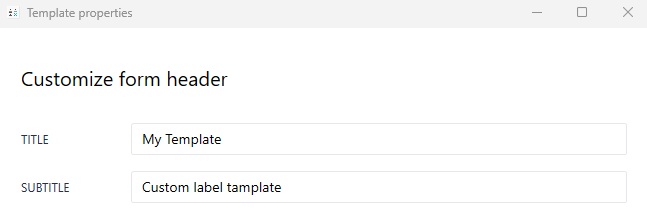
Edit Name
Edit Name

Title Field: The name of your template

Best Practices:

  • Use descriptive, meaningful names
  • Include workflow or purpose (e.g., "H&E Routine Slides")
  • Keep under 50 characters for readability
  • Avoid special characters that might cause file system issues

Examples:

  • "Surgical Pathology Slides"
  • "IHC Protocol Labels"
  • "Frozen Section - Grossing"
  • "Research Study XYZ"

Why it matters:

  • When you export the template, it defaults to this title as the filename
  • Helps organize templates in the template library
  • Makes templates easy to identify for all users

Printer Selection

Configure which printers are available for this specific template.
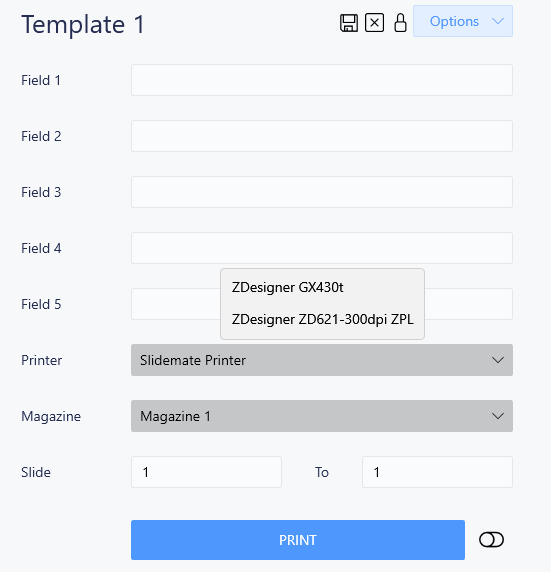
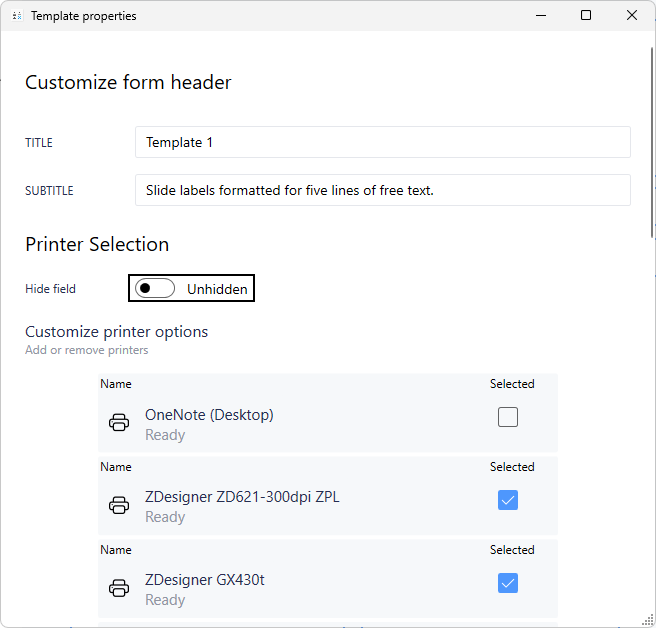
Printer Selection

Hide Field Toggle

By default, the printer selection dropdown is hidden on the template form.

To show printer selection:

  1. In Properties, locate Printer Selection
  2. Toggle Hide field to OFF
  3. Select which printers should be available

Selecting Available Printers

Once unhidden, you can choose which printers appear in the dropdown:

Options:

  • Default system printer
  • All installed printers
  • Specific printers only (check boxes next to printer names)

Typical Setup:

  1. Unhide the printer field
  2. Check only the printers relevant to this template
  3. Save settings

Result:A printer dropdown appears on the template form, showing only selected printers.

When to Use Printer Selection

Show printer selection when:

  • Template is used at multiple workstations
  • Different label types require different printers
  • Users need flexibility in printer choice

Keep hidden when:

  • Always prints to same printer
  • Centralized print server handles routing
  • Reduces user clicks and potential errors
Print to File

Print-to-File sends print jobs as text files to a monitored folder instead of directly to a printer.

How Print-to-File Works

1. User prints label
2. QRlogix creates a text file with print data
3. Text file is saved to monitored folder
4. External service or printer picks up the file
5. Label is printed
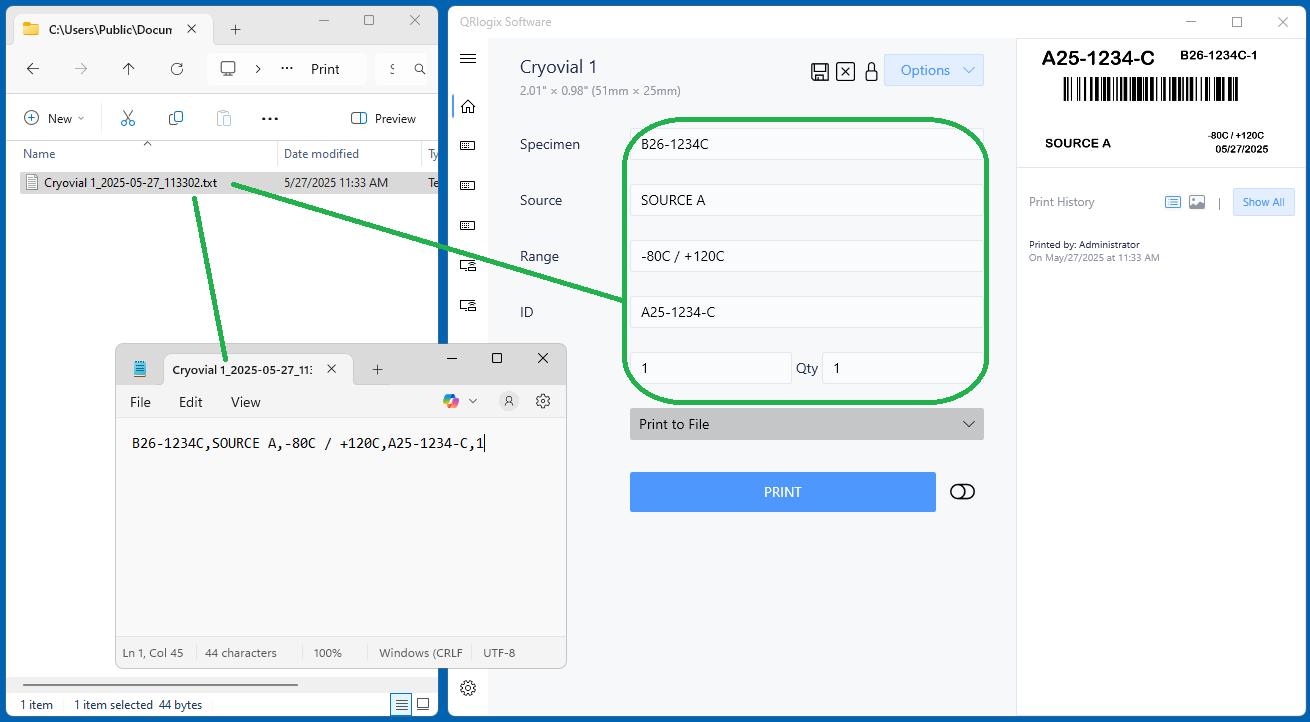
Print to File Process

Enabling Print-to-File

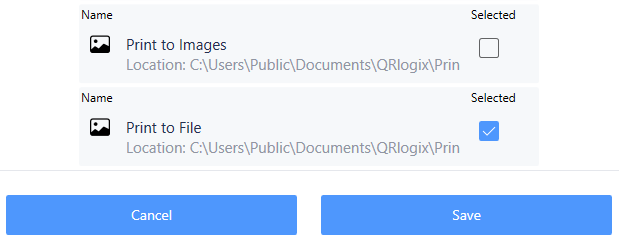
  1. In Properties, scroll to Print to File section
  2. Unhide the printer selection dropdown (see above)
  3. Scroll to bottom of printer list
  4. Locate Print to File option
  5. Select it
Print to File Selection

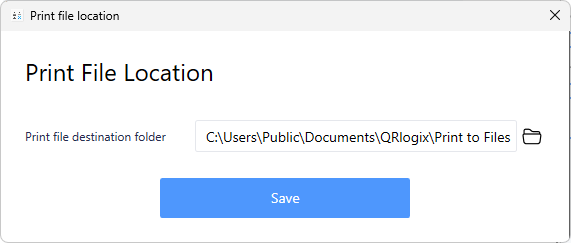
Configure Folder Path

Click the folder path to change the monitored folder location:

  1. Click current path
  2. Navigate to desired folder
  3. Select folder
  4. Save

Default path: Usually set during installation

Custom path: Any network or local folder accessible to both:

  • QRlogix Software (for writing files)
  • Printer or print service (for reading files)

Common scenarios:

  1. Network printing - Multiple workstations, central print server
  2. Print job queuing - Buffer between generation and printing
  3. Integration with other systems - LIS/LIMS triggered printing
  4. Remote printing - Print jobs sent across network to different locations

Print-to-File:

  • Data Entry templates sending output to folders
  • User manually initiates each print job
  • Interactive workflow

File Drop:

  • Automated monitoring of incoming files
  • Automatic printing without user interaction
  • Integration with external systems

Additional Settings

Description

Optional text field to add notes about template purpose or usage.

Good uses:

  • Special instructions for users
  • Template version notes
  • Workflow context

Template Version

Some installations show version tracking for template changes.

Saving Your Changes

After making changes to Properties:

  1. Click OK or Save in Properties dialog
  2. Click Save in Customize Template screen
  3. Test the template to verify settings

Common Configurations

Standard Laboratory Template

  • Name: Descriptive of workflow
  • Printer Selection: Hidden (always uses default)
  • Print-to-File: Disabled

Multi-Site Template

  • Name: Indicates shared use
  • Printer Selection: Visible with relevant printers
  • Print-to-File: Enabled for network printing

LIS Integration Template

  • Name: Includes system name
  • Printer Selection: Hidden
  • Print-to-File: Enabled with monitored folder path

Best Practices

Naming Conventions

Establish consistent naming:

  • Department prefix: "PATH-" for Pathology
  • Workflow identifier: "Routine", "Frozen", "IHC"
  • Label type: "Slide", "Cassette", "Block"

Example: "PATH-Routine-Slides" or "HISTO-IHC-Protocol"

Printer Management

Centralized approach:

  • Hide printer selection
  • Set default in system
  • Reduces user error

Distributed approach:

  • Show printer selection
  • Enable relevant printers only
  • Gives user flexibility

Documentation

Add template descriptions that include:

  • Intended use
  • Special requirements
  • Modified date
  • Who to contact for issues

Testing After Changes

  1. Name change: Verify template appears correctly in library
  2. Printer selection: Test printing to each available printer
  3. Print-to-File: Verify files appear in correct folder with proper format

Troubleshooting

Template Name Not Updating

  • Ensure you clicked Save in Properties
  • Close and reopen template
  • Check template library for updated name

Printer Selection Not Appearing

  • Verify "Hide field" is toggled OFF
  • Save and reopen template
  • Check that printers are installed in Windows
  • Verify folder path exists and is accessible
  • Check folder permissions (write access required)
  • Ensure folder is not full or read-only

Next Steps

Need Help?

Questions about template properties?


Related Articles: