
Metrc Retail ID - Add to a Label
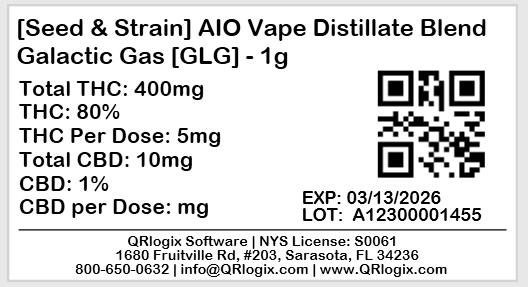
This tutorial shows how to add a Retail ID barcode to a label in QRlogix Software. Connecting the Retail ID barcode directly to Metrc data gives users the ability to print all, or a selection of available Retail IDs for a package.
Before You Begin
Retail ID barcodes are typically generated from live data (such as Metrc). Make sure your data connection is configured before proceeding.
Watch video:
Step 1: Add Retail ID to the template
From the QRlogix dashboard, open an existing label template and click on the Customize Template button.

Next, add click on Add Field.
Then click METRC Retail ID from the bottom of the selection list.
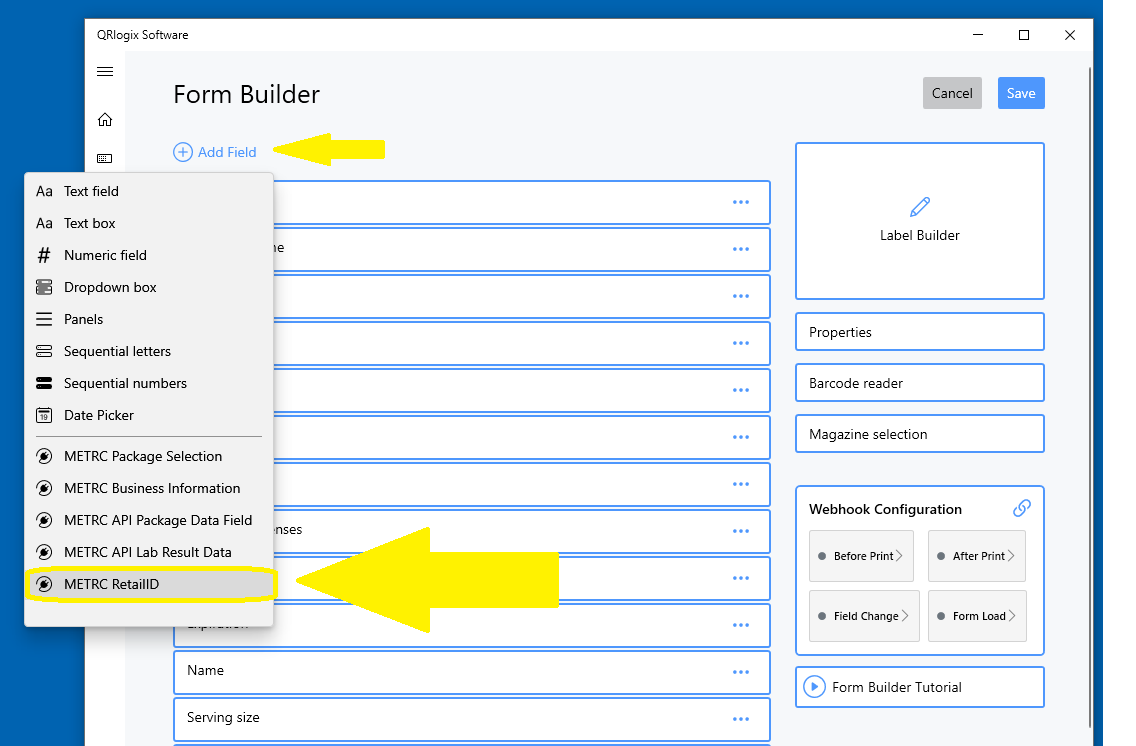
Select Save to add Retail ID tot he template.
Retail ID will appear at the bottom field list. It is suggested that you drag the field to the top of the form, just below the package selection field. It will then appear in a logical place on the template form.
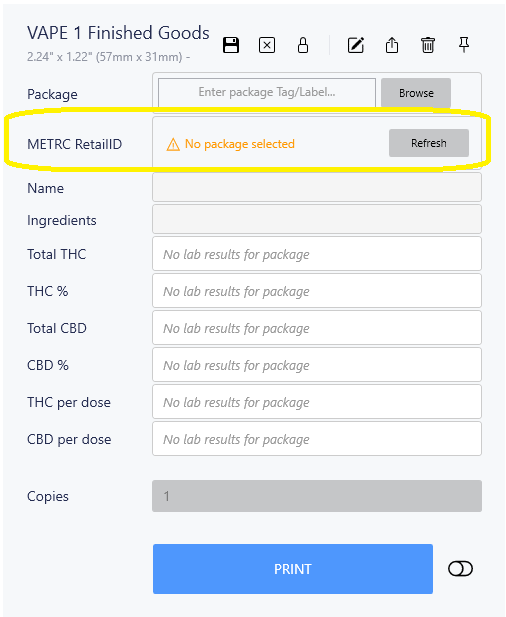
Once Retail ID has been added to the template form, navigate to Label Builder.
Label Builder
Step 2: Add a Barcode
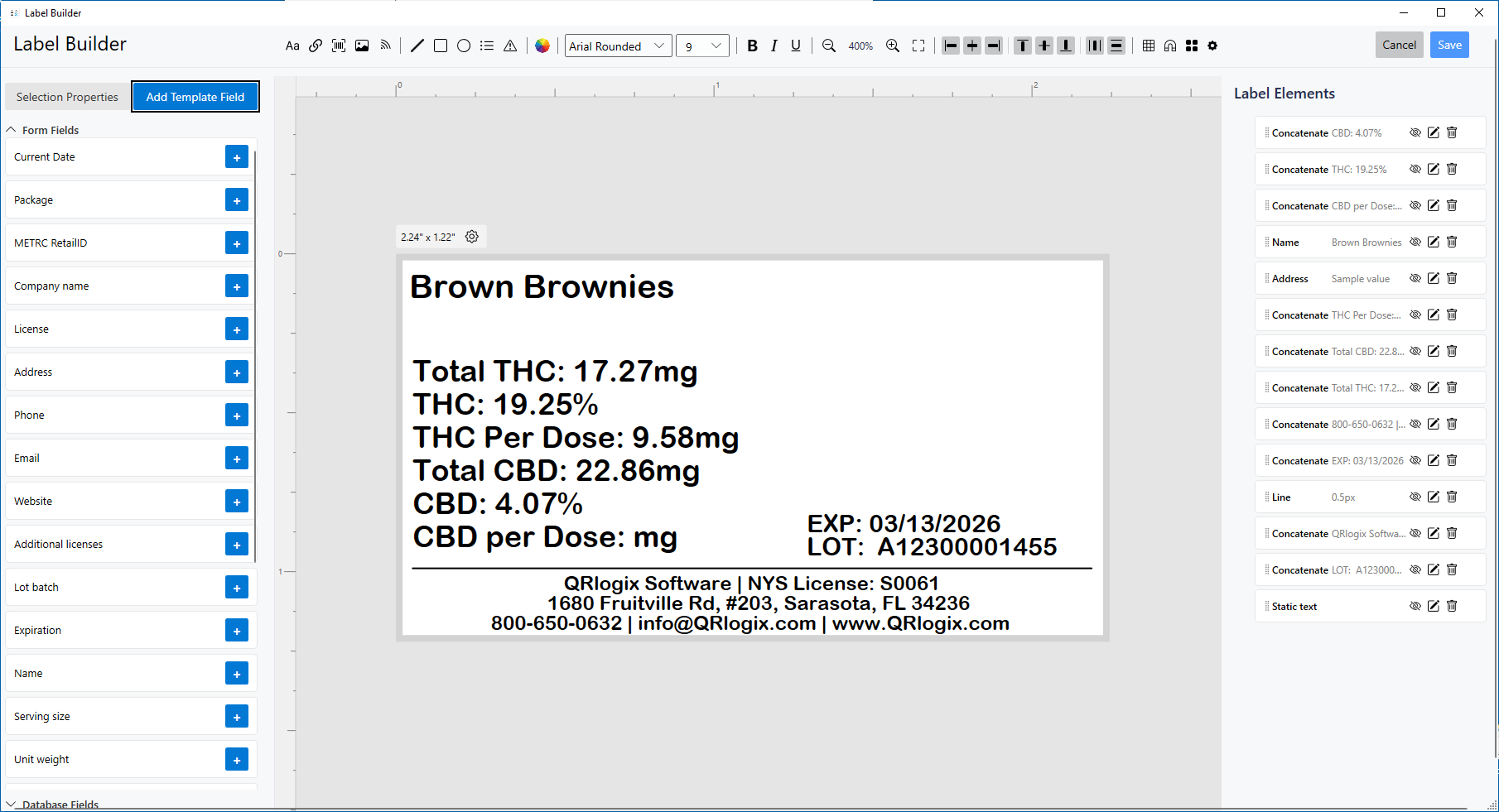
In the label designer toolbar, select the Barcode icon:

The barcode setup window will appear. Select the barcode type, QR Code from the dropdown and edit the size.
Locate METRC RetailID in the list of options. Select it.
Next, build the barcode using the selection boxes. The Sample values preview provides an example of what the barcode format will look like.
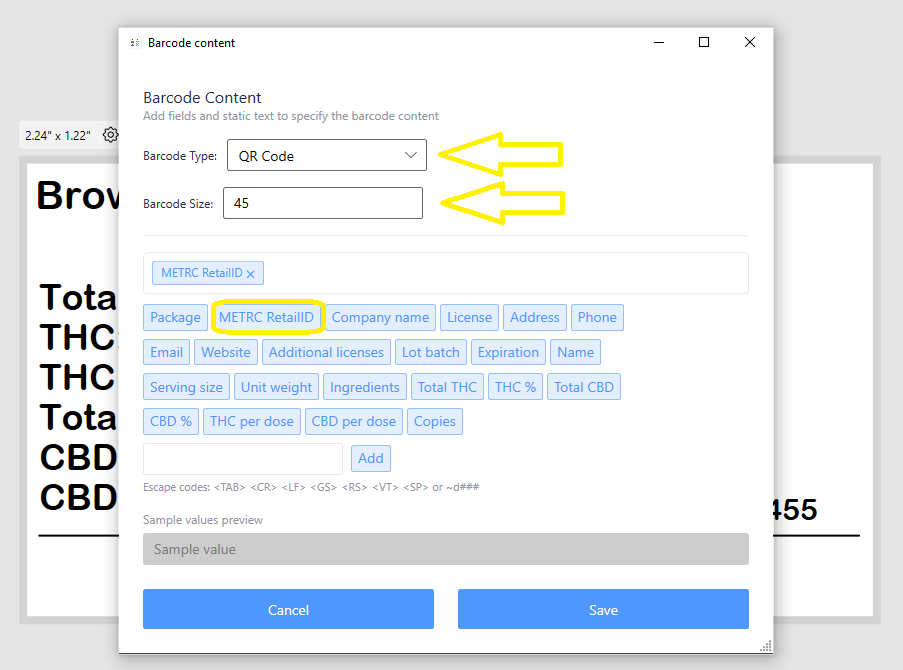
The new barcode will appear on your label.
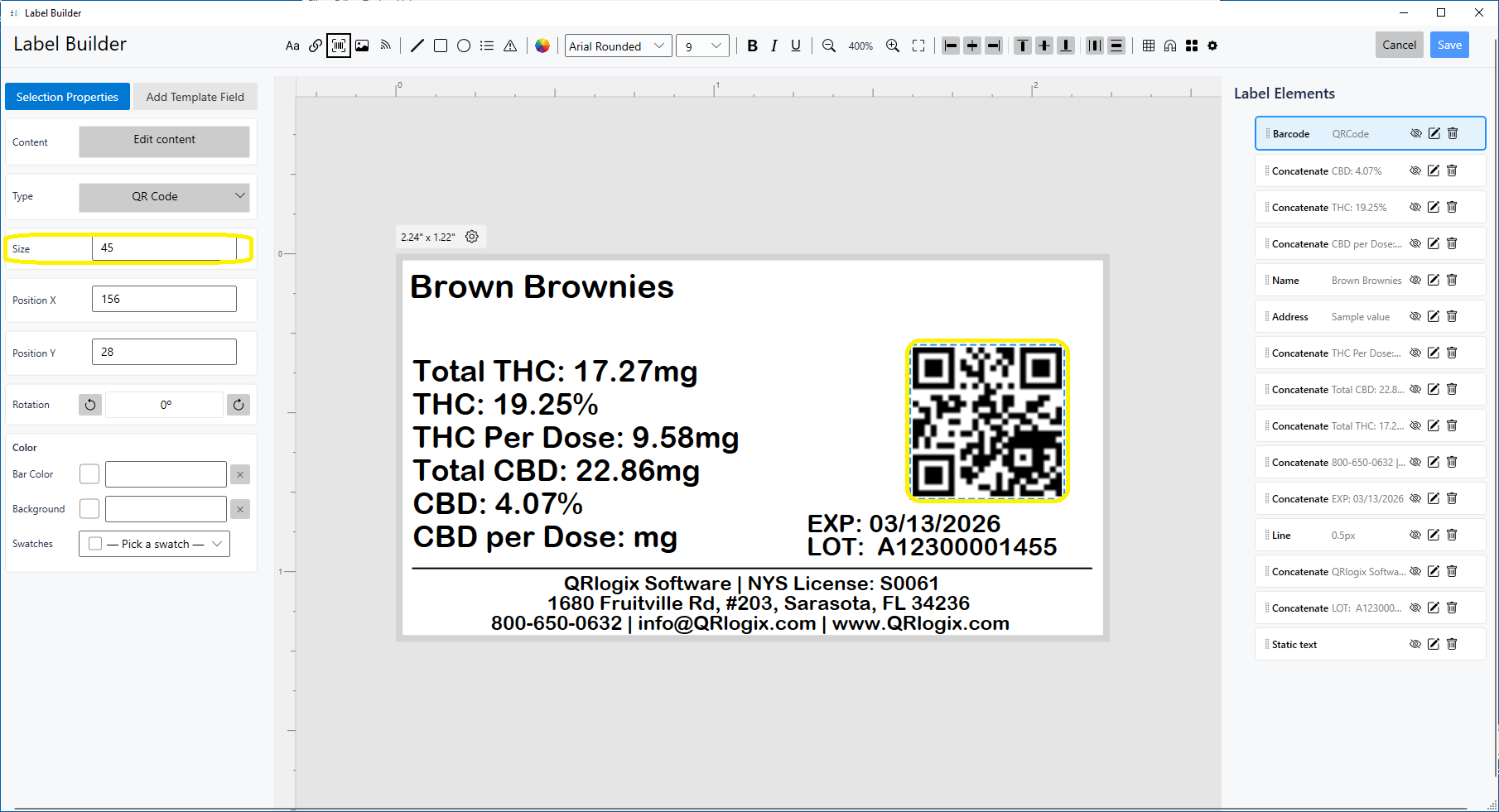
You can drag and drop the barcode to the desired position on the label.
To adjust the barcode size, click on the barcode on the label, and then in the Size field on the left increase or decrease the value as needed.
Once you are content with the Retail ID placement on the label, click Save to exit Label Builder. Then click Save in Form Builder to return to the template print page.
You've successfully added a Retail ID barcode to a Metrc template.
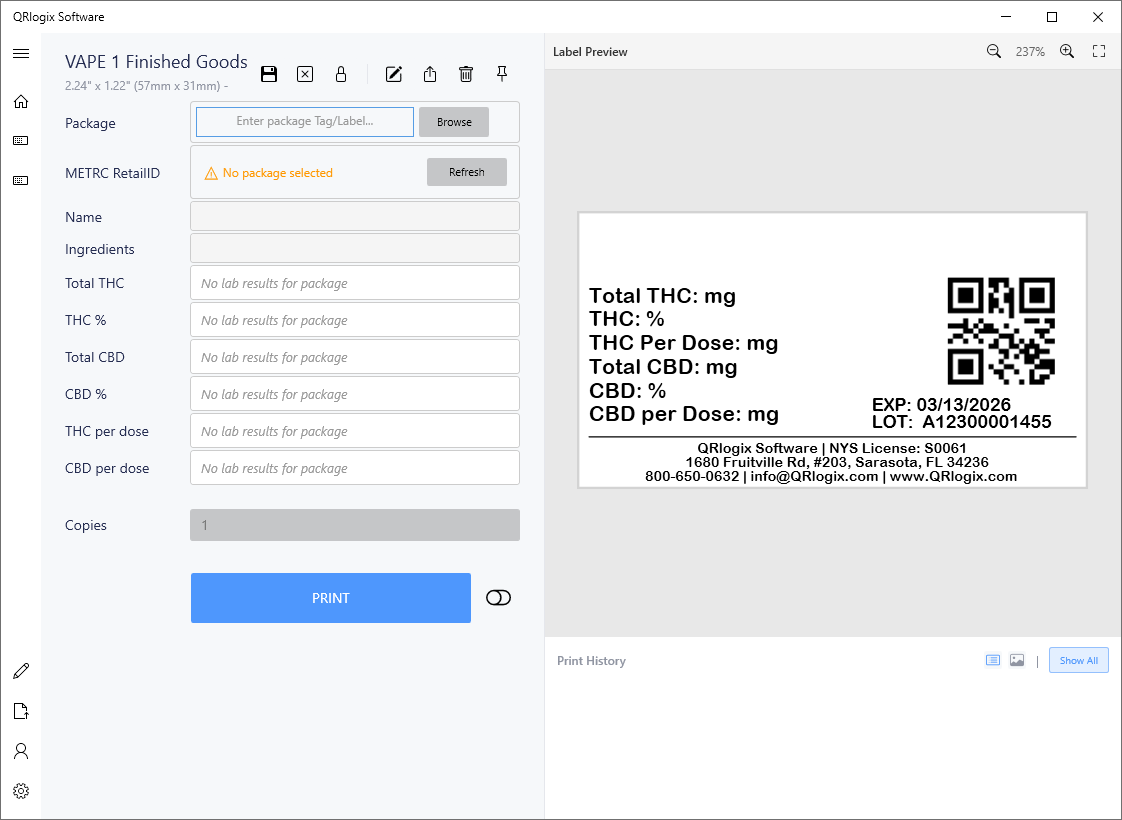
Expected Result
After completing these steps:
- Your label includes a scannable Retail ID barcode
- The barcode dynamically updates based on the selected product or data source
- The label is ready for compliant printing and tracking workflows
Need Help?
If you run into issues:
- Phone Support: 800-650-0632
- Email Support: Support@QRlogix.com