
License Activation
After installing QRlogix Software, you'll need to activate your license before you can use the application. This guide walks you through the activation process.
Before You Begin
- Locate your license file (provided in your welcome email)
- Ensure you have an active internet connection (required for activation)
Activation Methods
There are two ways to activate your license:
Method 1: Drag and Drop (Recommended)
- Launch QRlogix Software from your desktop icon
- The License Activator window will appear
- Drag and drop your license file into the activator window
- Wait for the license to process (potentially 20+ seconds). Please be patient.
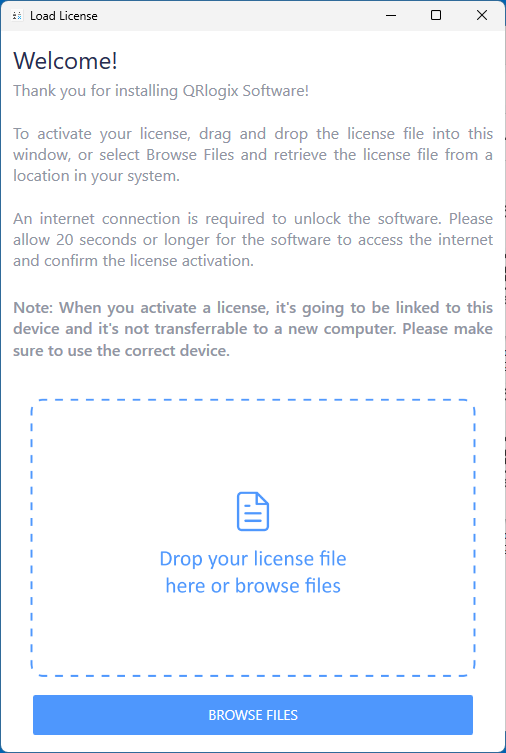
Important: Do not close the window during activation. The process requires an internet connection and may take up to 20+ seconds.
Method 2: Browse and Select
- Launch QRlogix Software from your desktop icon
- Click BROWSE FILES in the License Activator window
- Navigate to the folder containing your license file
- Select the license file
- Click Open or OK
- Wait 20+ seconds for the license to process
Successful Activation
Once the license is confirmed, the application will open automatically and display the main dashboard.
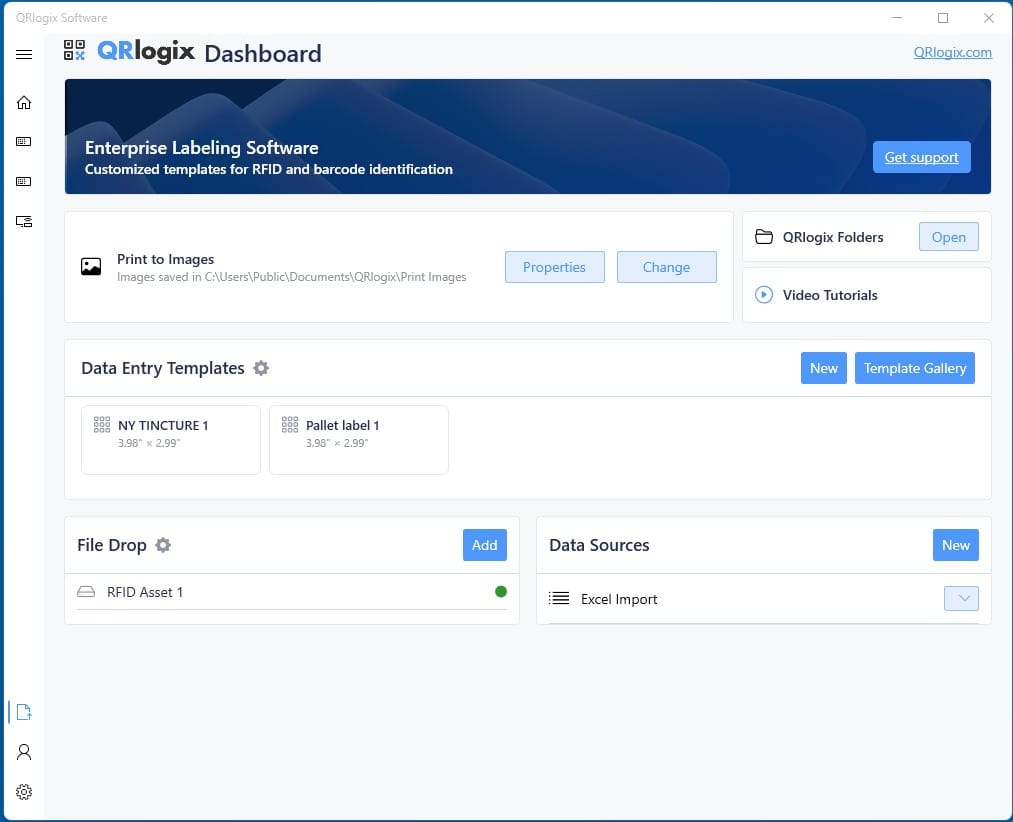
You're now ready to start using QRlogix Software!
Troubleshooting
Activation Taking Too Long
- Check your internet connection - Activation requires online verification
- Wait the full 30 seconds - Don't close the window prematurely
- Try the other method - If drag-and-drop doesn't work, try Browse Files
- Consult with IT
"License Exceeds Maximum Seats" Error
- Licenses are generated "Per PC"
- Contact info@QRlogix.com or call: 800-650-0632 if you want to add licenses for additional PCs
Internet Connection Issues
- Activation requires an active internet connection
- Check your IT security and firewall settings - they may be blocking the activation
- Try connecting to a different network if available
- Try a cellular hotspot - It works!
Need Help?
If you're unable to activate your license:
- Phone Support: 800-650-0632
- Email Support: Support@QRlogix.com
- Have your license file and order information ready
Next Steps
Now that your software is activated:
- Explore the Interface - Get familiar with the dashboard
- Watch the Getting Started Video - Learn the basics