
Label Builder Tutorial

Label Builder Tutorial

Label Builder is QRlogix's powerful visual label design tool that allows you to create professional labels with text, barcodes, images, and more. This comprehensive tutorial covers everything you need to know to design effective labels.

Watch the Tutorial

Watch on Vimeo: Label Builder Tutorial

What is Label Builder?

Label Builder allows you to:

  • Design label layouts visually on a canvas
  • Add form field data to labels
  • Insert barcodes for scanning
  • Add static text and images
  • Control positioning and formatting
  • Preview labels with sample data in real-time
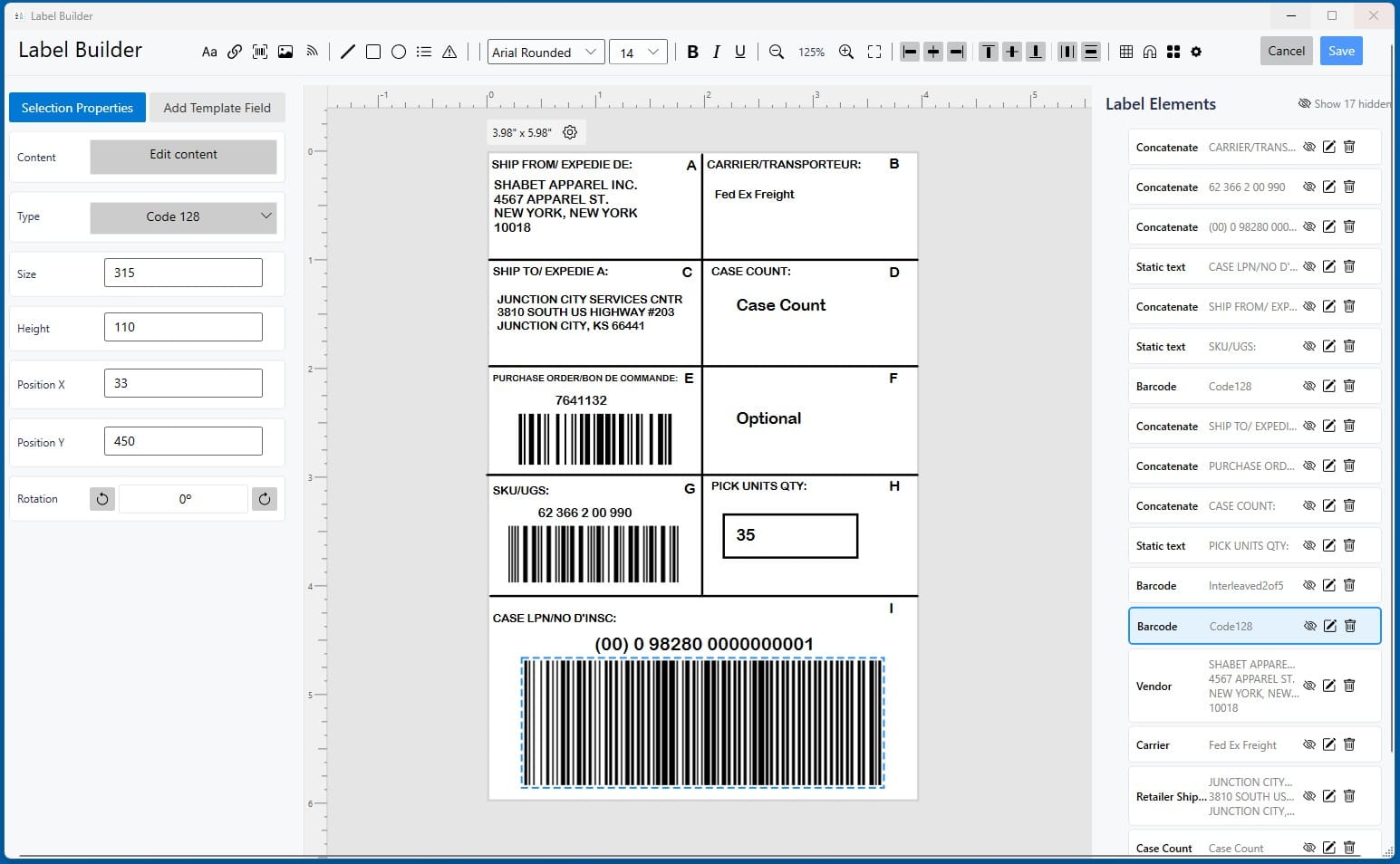
Label Builder Interface

Accessing Label Builder

For New Templates

  • Complete Form Builder setup first
  • Click Label Builder button to proceed

For Existing Templates

  1. Open template
  2. Click OptionsCustomize Template
  3. Click Label Builder (or Label Settings for File Drop)

Label Builder Interface
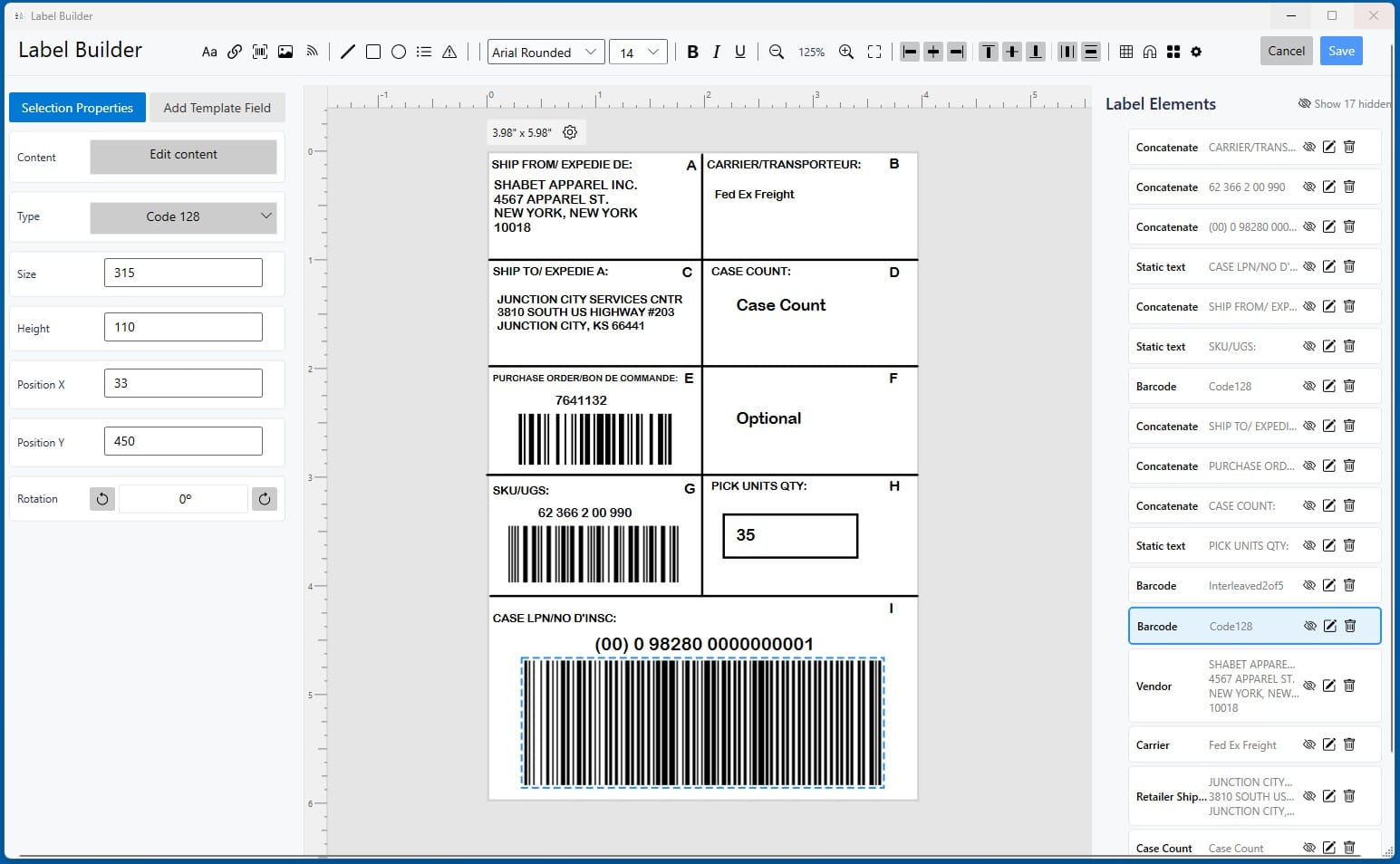
Interface Overview

Key Components

A - Label Defaults (Settings Wheel)

  • Background style
  • Default font family
  • Default font size
  • Default X/Y positioning
  • Barcode defaults
  • Image defaults

B - Choose Element Dropdown

  • Template Field
  • Static Text
  • Image
  • Concatenate
  • Barcode

C - Label Canvas

  • Visual representation of your label
  • Shows elements as they'll print
  • Real-time preview with sample data

D - Element Properties Panel

  • X/Y axis placement
  • Font type and size
  • Font formatting (bold, italic, underline)

E - Elements Added List (Right Side)

  • All elements on your label
  • Click to edit
  • Right-click for options
  • Drag to reorder

H - Label Size Editor

  • Adjust label dimensions
  • Set custom sizes

I - Form Element Settings

  • Field properties
  • Sample data values

J - Cancel Button

  • Discard all changes without saving

K - Save Button

  • Apply changes to template

Getting Started: Label Defaults

Before adding elements, configure your label defaults:

Step 1: Click the Settings Wheel

Settings Wheel

Step 2: Configure Default Settings

Label Defaults

Background

Choose canvas background:

  • Blank - Clean white (best for final design)
  • Dotted - Dots for reference
  • Grid - Lines for precise alignment

Recommendation: Use Grid while designing, Blank for final preview.

Font Family

Select default font for all text elements.

Popular choices:

  • Arial - Clean, universal
  • Calibri - Modern, readable
  • Courier - Monospaced, technical
  • Times New Roman - Traditional, serif

Tips:

  • Sans-serif fonts (Arial, Calibri) are most readable on small labels
  • Avoid decorative fonts
  • Test print to verify font appearance

Font Size

Default size for text (in points).

Guidelines by label size:

  • 1" x 3" slides: 8-12pt typical
  • Tissue cassettes: 6-10pt typical
  • Smaller labels: Adjust accordingly

Important: Font too small = hard to read. Font too large = doesn't fit.

Position X (Horizontal)

Default horizontal starting position (left to right).

How it works:

  • Based on 300 DPI (dots per inch)
  • X = 1: Far left edge
  • X = 138: Center of 1" wide label (≈275 dots)
  • X = 275: Far right edge

Tip: Start with low numbers (5-10) and adjust from there.

Position Y (Vertical)

Default vertical starting position (top to bottom).

How it works:

  • Based on 300 DPI
  • Y = 1: Top edge
  • Y = 120: Center of 1" tall label (≈240 dots)
  • Y = 240: Bottom edge

Important Note: X/Y positioning is from the top-left corner of the element:

  • Positioning at center doesn't center the element
  • It places the element's top-left corner at that point
  • Element extends right and down from that position

Common Issue: Adding an element but not seeing it? It's likely positioned off the canvas. Check X/Y values are within label dimensions.

Barcode Settings

Default barcode type and size.

Common types:

  • Data Matrix - 2D, small, damage-resistant (recommended for pathology)
  • QR Code - 2D, larger, widely compatible
  • Code 128 - 1D linear barcode
  • Code 39 - 1D, alphanumeric

Size: Adjust based on scanning requirements and label space.

Image Settings

Default height and width for static images (logos, symbols).

Tips:

  • Use low-resolution graphics (.gif or simple .png)
  • High-definition photos don't print well on thermal printers
  • Test print to verify quality

Adding Elements to Your Label

Template Field

Add data from your form fields to the label.

How to add:

  1. Select Template Field from Choose Element dropdown
  2. Select which field from the Field dropdown
  3. Adjust X/Y position
  4. Set font size
  5. Click Insert
Template Field
Available Fields
Field List

Example:

  • Field: Case Number
  • X: 5 (near left edge)
  • Y: 20 (near top)
  • Font: Arial, 10pt

Result: Case number displays at that position on every label.

Static Text

Add text that appears on every label (not from form fields).

How to add:

  1. Select Static Text from dropdown
  2. Enter text in the input box
  3. Set X/Y position and font
  4. Click Insert
Static Text

Use cases:

  • Department name: "Pathology Department"
  • Label type: "Frozen Section"
  • Instructions: "Keep Refrigerated"
  • Fixed identifiers: "Property of XYZ Lab"

Example:

  • Text: "RUSH - Frozen Section"
  • X: 10, Y: 10
  • Font: Arial Bold, 12pt
  • Result: Appears prominently on every label

Image

Add a logo, symbol, or graphic to your label.

How to add:

  1. Select Image from dropdown
  2. Click Browse to select image file
  3. Set height and width
  4. Set X/Y position
  5. Click Insert

Best practices:

  • Use simple graphics (logos, symbols)
  • Low-definition images work best
  • Test print to check quality
  • Consider printer limitations
  • .GIF or simple .PNG formats recommended

Use cases:

  • Company logo
  • Department logo
  • Biohazard symbol
  • Warning icons

Concatenate

Connect multiple form fields and static text into a clean, formatted string.

What is concatenation?Combining separate pieces of data with custom formatting.

Example:

  • Form Fields: Prefix="S23", Case="1234", Specimen="A", Block="2"
  • Concatenate: S23-1234-A2

How to add:

  1. Select Concatenate from dropdown
  2. Build your string:
  • Click form field buttons to add data
  • Type static characters (dashes, spaces, slashes)
  • Arrange in desired order
  1. Important: Check Sample Value Preview
  2. Set X/Y position and font
  3. Click Insert
Concatenate Builder

Example Building Process:

  1. Click "Prefix" button → adds @prefix@
  2. Type - → adds dash separator
  3. Click "Case" button → adds @case@
  4. Type - → adds another dash
  5. Click "Specimen" button → adds @specimen@
  6. Click "Block" button → adds @block@
  7. Sample shows: S23-1234-A2

Common Patterns:

  • Case ID: @prefix@-@case@-@specimen@@block@
  • Date format: @month@/@day@/@year@
  • Name format: @lastName@, @firstName@
  • Block ID: @case@ @part@ Block @blockNum@

Tips:

  • Always review Sample Value Preview
  • Test with realistic data lengths
  • Use separators that are clear and standard
  • Don't over-complicate

Barcode

Add a scannable barcode to your label.

How to add:

  1. Select Barcode from dropdown
  2. Build barcode content:
  • Click form field buttons to add data
  • Type separator characters
  • Arrange data in scan order
  1. Critical: Check Sample Value Preview
  2. Set X/Y position
  3. Click Insert
Barcode Builder

Example:

  • Field: Case Number + Specimen Letter + Block ID
  • Build: Click "Case" → Type ; → Click "Specimen" → Type ; → Click "Block"
  • Sample shows: S23-1234;A;2
  • This is exactly what will scan

Critical Requirements:

  • Sample Value must show exact scan output
  • Include all separators you want in the scan
  • Verify format matches your LIS/system expectations
  • Test scan before production use

Common Formats:

  • Simple: @case@
  • Multi-field: @case@;@specimen@;@block@
  • Complex: @prefix@-@case@|@date@|@stain@

Positioning Elements

Understanding X/Y Coordinates

X-Axis (Horizontal):

  • Left edge = low numbers (1-10)
  • Center = ~138 for 1" wide label
  • Right edge = ~265-275

Y-Axis (Vertical):

  • Top = low numbers (1-10)
  • Center = ~118-120 for 1" tall label
  • Bottom = ~230-240

Remember: Positioning is from element's top-left corner, not center.

Arranging Multiple Elements

Vertical stacking:

Element 1: Y = 20
Element 2: Y = 50 (30 dots below)
Element 3: Y = 80 (30 dots below)
Element 4: Y = 110

Horizontal alignment:

All elements: X = 5 (left-aligned)
Or
All elements: X = 138 (center-aligned, but remember top-left positioning!)

Side-by-side:

Left element: X = 5
Right element: X = 150

Avoiding Overlap

  • Leave adequate spacing between elements
  • Typical minimum: 5-10 dots vertical space
  • Account for font size (larger fonts need more space)
  • Preview frequently

Editing Elements

Method 1: Click Element in List

  1. On right side, click the element
  2. Properties panel opens
  3. Modify settings
  4. Changes apply automatically

Method 2: Right-Click Element

Right-Click Menu

Options:

  • Edit Field - Modify field properties and sample data
  • Edit Element - Change positioning and formatting
  • Delete - Remove from label

Editing Sample Data

Edit Sample Data
New Sample Data

To change sample values shown in preview:

  1. Right-click element → Edit Field
  2. Change Sample Value
  3. Click Save
  4. Label preview updates
Updated Preview

Why update sample data:

  • See how longer/shorter data looks
  • Test different formats
  • Verify spacing and alignment
  • Ensure label accommodates maximum data length

Font Formatting

Font Type

Change from dropdown or element properties.

Selection factors:

  • Readability at small sizes
  • Printer compatibility
  • Professional appearance

Font Size

Adjust in points (pt).

Guidelines:

  • Minimum: 6pt (readability limit)
  • Typical: 8-12pt
  • Maximum: Limited by label space
  • Test print to verify

Font Formatting

Bold - Makes text heavier, more prominent

  • Use for: Important fields, headers, warnings

Italic - Slants text

  • Use for: Secondary information, notes

Underline - Adds line below text

  • Use for: Emphasis, separation

Combinations: Can combine (Bold + Underline, etc.)

Preview and Testing

Real-Time Preview

The canvas shows your label with sample data as you build it.

What to check:

  • All elements visible
  • No overlapping
  • Proper alignment
  • Readable fonts
  • Barcode fits and is clear
  • Overall appearance professional

Test Print

Before using in production:

  1. Save your label design
  2. Return to template form
  3. Enter realistic test data
  4. Check label preview (top right of form)
  5. Print to blank labels or PDF
  6. Verify:
  • All data prints correctly
  • Positioning is accurate
  • Barcodes scan properly
  • Fonts are readable
  • Nothing is cut off

Saving Your Design

Save Button

When label design is complete:

  1. Review all elements one final time
  2. Check sample data accuracy
  3. Verify barcode content (if applicable)
  4. Click Save

Your label design is now applied to the template.

Final Form

On the template form, the label preview (upper right) shows your design with form data.

Common Label Layouts

Basic Pathology Slide (1" x 3")

Elements:

  • Top line: Case ID (concatenate: PREFIX-CASE-SPECIMEN)
  • Line 2: Patient Name
  • Line 3: Stain
  • Line 4: Date and Tech
  • Left side: Data Matrix barcode (case + specimen)

Approximate positions:

  • Text: X=130 (leave room for barcode)
  • Barcode: X=5, Y=20
  • Lines: Y=30, 60, 90, 120

Tissue Cassette Label

Elements:

  • Line 1: Case Number (large, bold)
  • Line 2: Specimen ID
  • Line 3: Fixative
  • Right side: Small Data Matrix

Layout:

  • Larger fonts (10-12pt) due to cassette size
  • Barcode smaller to save space

Research Specimen

Elements:

  • Top: Study logo (image)
  • Line 1: Study ID
  • Line 2: Subject Number
  • Line 3: Visit and Date
  • Bottom: Linear barcode (full width)

Best Practices

Design Principles

Clarity:

  • Most important data prominent (larger, bold)
  • Clear hierarchy
  • Uncluttered layout

Efficiency:

  • Only include needed information
  • Balance detail with readability
  • Consider label size constraints

Consistency:

  • Same font family throughout (usually)
  • Logical alignment (left, center, or right)
  • Consistent spacing

Testing

Always test:

  • With maximum data length
  • With minimum data length
  • With special characters
  • Barcode scanning (if applicable)
  • On actual label stock
  • On actual printer

Iteration

Don't expect perfection first try:

  1. Design initial layout
  2. Test print
  3. Identify issues
  4. Refine design
  5. Test again
  6. Repeat until satisfied

Troubleshooting

Element Not Visible

  • Cause: Positioned off canvas
  • Fix: Check X/Y values, ensure within label dimensions

Text Cut Off

  • Cause: Element too close to edge, or text too long
  • Fix: Adjust position, reduce font size, or use Max Length in field settings

Barcode Won't Scan

  • Cause: Too small, poor quality, wrong data format
  • Fix: Increase barcode size, verify sample value, test different barcode types

Elements Overlapping

  • Cause: Insufficient spacing
  • Fix: Adjust Y positions to add vertical space

Font Appears Different When Printed

  • Cause: Printer limitations, font substitution
  • Fix: Use common fonts, test print, check printer driver settings

Advanced Techniques

Multi-Line Text Blocks

Place multiple text elements with consistent X, varying Y for paragraph effect.

Centered Elements

Calculate center position minus half element width (trial and error often easiest).

Mixed Formatting

Use multiple text elements with different formatting for emphasis.

Barcode + Human Readable

Add text element below barcode with same data for manual reading.

Next Steps

After mastering Label Builder:

Additional Resources

More tutorials and resources:

Need Help?

Questions about Label Builder?


Related Articles: