
Installing QRlogix Software
Before You Begin
Important: Administrative rights are required to install QRlogix Software and most printer drivers. Make sure you have admin access before proceeding.
Determining Your Windows Version
QRlogix Software is designed and optimized for Windows 10 and 11 operating systems.
Upon filling out the user registration and agreeing to the software terms of use, you will arrive at the download page shown below:
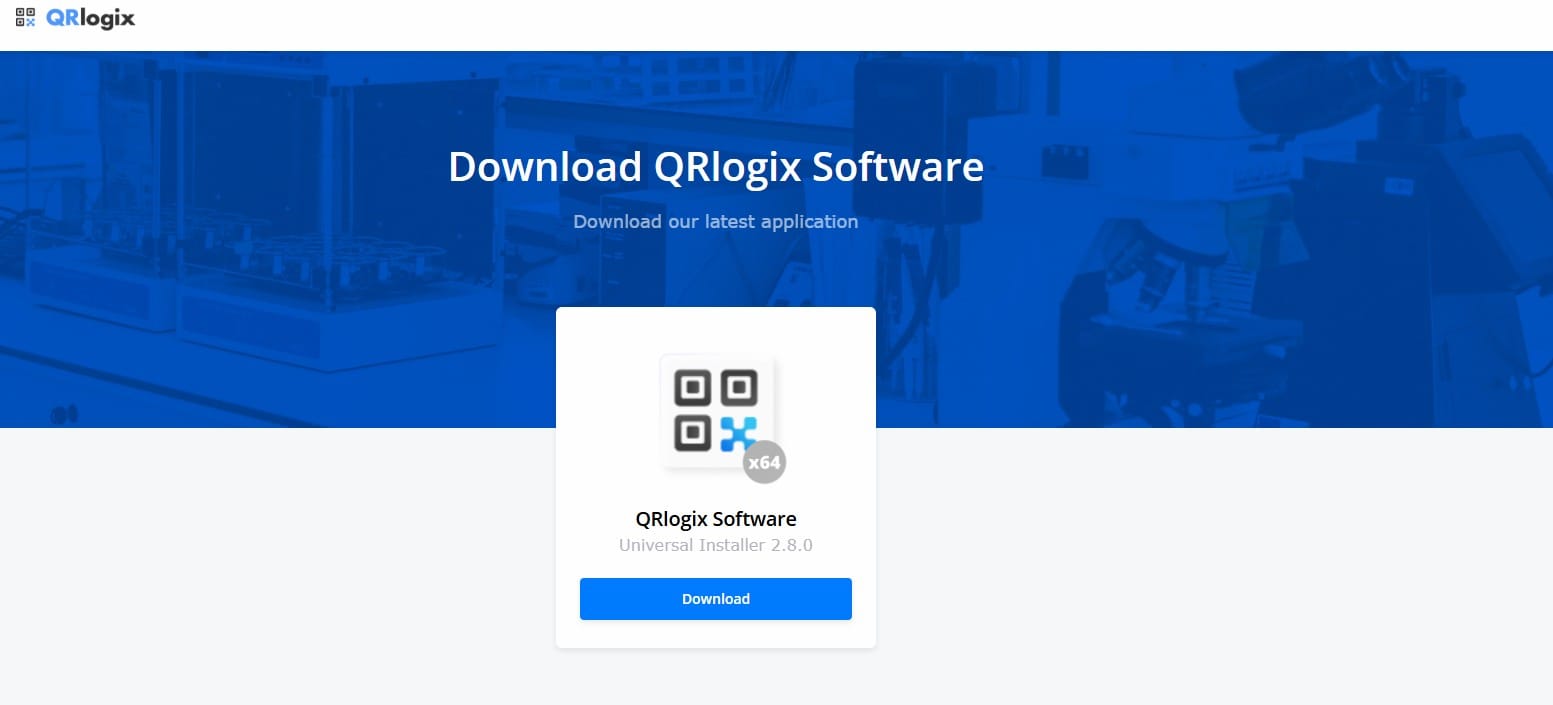
Click the download button and follow the instructions provided in the wizard.
The installer window will appear. Click Yes, then Next to begin the installation.
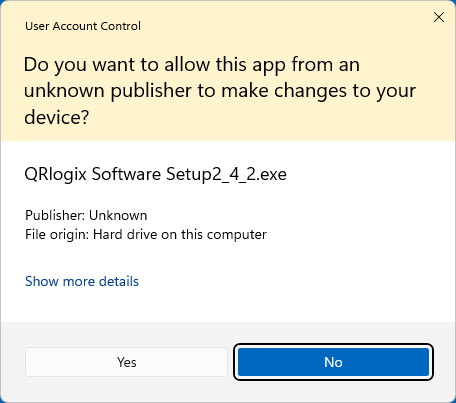
Step 3: Select Installation Packages
Choose which components to install:
- QRlogix Desktop Application (Required) - Main software for label design and printing
- File Drop Service Automation solution. REQUIRES AUTOMATION LICENSE
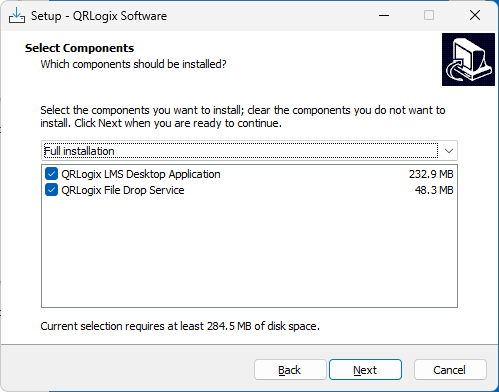
Note: If you're unsure whether you need File Drop, contact QRlogix support at 800-650-0632 or Support@QRlogix.com
Step 4: Confirm Installation Paths
Confirm the file installation path for the application. The default location is recommended for most situations.
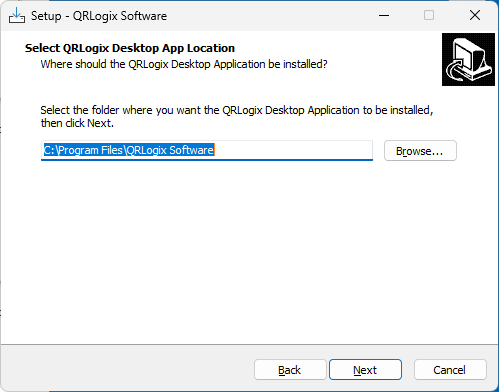
If you're installing both the desktop application and File Drop, you'll need to confirm the path for both applications.
Step 5: Complete Installation
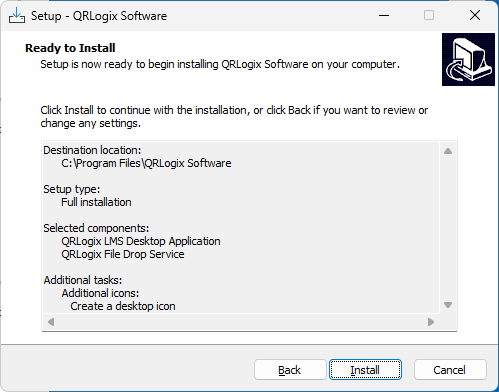
Click Next to confirm and begin installation. The installation process will take a few minutes to complete.
Step 6: Launch the Software
Once installation completes, an icon for QRlogix Software will appear on your computer's desktop.

Click the icon to launch the software for the first time.
Next Steps
After installation:
 QRlogix Team
Need Help?
If you encounter any issues during installation:
- Phone Support: 800-650-0632
- Email Support: Support@QRlogix.com
- Business Hours: Monday - Friday, 9 AM - 5 PM EST