
Form Builder - Step-by-Step Guide
Form Builder is where you design the data entry form for your template. This tutorial walks you through the complete process of building an effective form that supports your labeling workflow.
Watch the Tutorial
What is Form Builder?
Form Builder allows you to:
- Add data entry fields to your template
- Configure field properties and behavior
- Organize fields in logical order
- Prepare fields for use in Label Builder
Think of Form Builder as designing the "input" side—what users see and interact with before printing.
Accessing Form Builder
For New Templates
When creating a new template using the wizard:
- Select label type (slide or cassette)
- Choose counter type (copies or sequential)
- Name your template
- Form Builder opens automatically
For Existing Templates
To edit an existing template's form:
- Open the template
- Click Options → Customize Template
- Form Builder appears with current fields
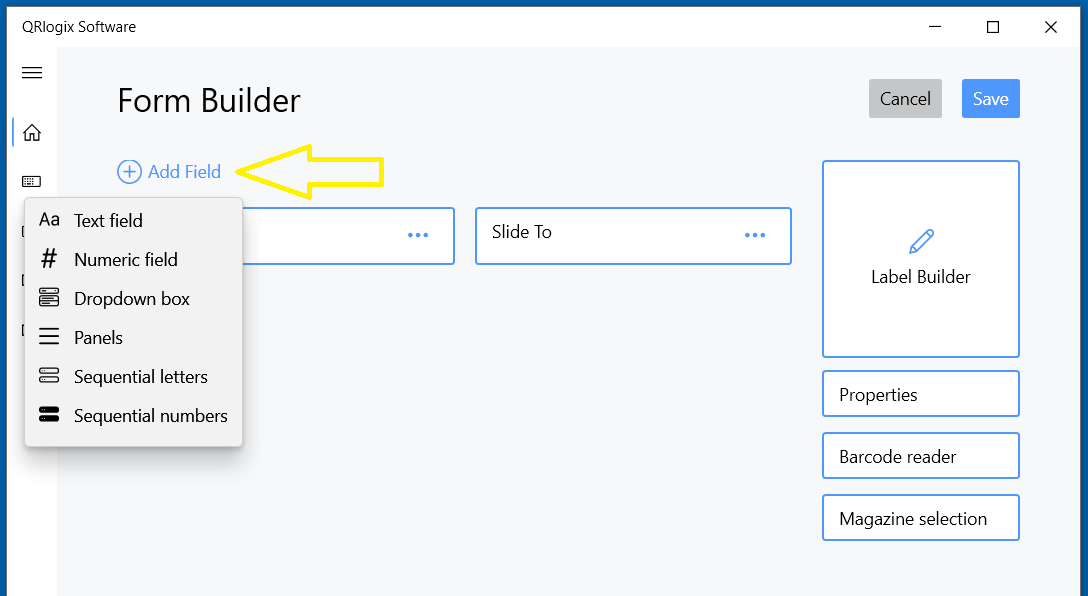
Form Builder Interface
Main Components
Left Side - Form Field List:
- Shows all fields in your form
- Drag to reorder fields
- Click to edit properties
Right Side - Label Preview:
- Shows how label will look
- Updates as you add/modify fields
- Displays sample data from fields
Top Bar - Add Field:
- Button to add new fields
- Opens field type selection
Bottom - Label Builder:
- Button to open label design
- Proceed here after form is complete
Building Your Form
Step 1: Plan Your Fields
Before adding fields, determine what data you need:
Essential data:
- What identifies each specimen? (Case number, ID)
- What varies per label? (Slide number, specimen letter)
- What's optional but useful? (Date, tech, stain)
Example for Pathology Slides:
- Case Number (required)
- Specimen Letter (required)
- Block ID (optional)
- Slide Number (required, sequential)
- Stain (required)
- Date (optional)
- Technician (optional)
Step 2: Add Fields
Click Add Field and select field type:
Text Field
For alphanumeric data.
Configure:
- Field Name: "Case Number"
- Sample Value: "S23-1234"
- Max Length: 20
- Locked: No (varies each time)
- Repeat Last Data: No
Use for: Case numbers, patient names, descriptions
Numeric Field
For numbers only.
Configure:
- Field Name: "Accession Number"
- Sample Value: 12345
- Auto-Increment: Yes (if sequential)
- Leading Zeros: 5 digits
- Locked: No
Use for: Accession numbers, counts, sequential IDs
Dropdown Box
For selecting from predefined options.
Configure:
- Field Name: "Stain"
- Options: H&E, Trichrome, PAS, GMS, etc.
- Locked: No
- Repeat Last Data: Yes
Use for: Stains, departments, technicians, protocols
Panels
For printing multiple labels with different values.
Configure:
- Panel Name: "IHC Markers"
- Selections: ER, PR, HER2, Ki-67
- Result: 4 labels print, one for each marker
Use for: IHC panels, stain sets, test batteries
Sequential Letters
For A, B, C, etc.
Configure:
- Field Name: "Specimen Letter"
- Sample Value: "A"
- Max Length: 2
- Locked: No
Use for: Specimen identifiers, part letters
Sequential Numbers
For 1, 2, 3, etc.
Configure:
- Field Name: "Slide Number"
- Sample Value: 1
- Leading Zeros: 2 digits (01, 02, etc.)
- Locked: No
Use for: Slide numbers, section counts, levels
Step 3: Configure Each Field
After adding a field, configure its properties:
- Click the field in the list
- Set sample value (important for label preview!)
- Configure behavior (locked, repeat, etc.)
- Click Save
Sample Value Importance:
- Used in Label Builder preview
- Should represent typical data length
- Helps visualize final label accurately
Step 4: Organize Field Order
Fields appear on the form in the order shown in Form Builder.
Best practice order:
- Most important fields first (case ID)
- Logical workflow sequence
- Variable fields before constants
- Related fields grouped together
To reorder:
- Click and drag fields up or down
- Test the workflow after reordering
Step 5: Test the Form
Before proceeding to Label Builder:
- Review field list
- Check sample values in preview
- Verify all needed fields are present
- Ensure field order makes sense
Common Form Configurations
Basic Pathology Slide
Fields:
- Case Number (Text)
- Specimen Letter (Sequential Letters or Dropdown)
- Block ID (Numeric)
- Slide Count (Sequential Numbers, From/To)
- Stain (Dropdown)
IHC Protocol
Fields:
- Case Number (Text)
- Specimen ID (Text)
- IHC Panel (Panels dropdown)
- Date (Text with Repeat Last Data)
- Technician (Dropdown)
Research Study
Fields:
- Study ID (Text, Locked)
- Subject Number (Numeric, Auto-increment)
- Visit Number (Numeric)
- Specimen Type (Dropdown)
- Collection Date (Text)
- Slide Count (Sequential Numbers)
Frozen Section
Fields:
- Case Number (Text)
- Part Letter (Sequential Letters)
- Time (Text with Repeat Last Data)
- Surgeon (Dropdown)
- Slide Count (Sequential Numbers)
Form Design Best Practices
Keep It Simple
- Only add fields you actually need
- Every field = another click
- Simpler = faster workflow
Use Appropriate Field Types
- Text for mixed alphanumeric
- Numeric for numbers only
- Dropdown for standardized selections
- Don't use text for everything
Leverage Automation
- Auto-increment for counters
- Repeat Last Data for frequently repeated values
- Locked fields for constants
- Sequential options for numbering
Consider Your Users
- Logical tab order
- Clear field names
- Familiar terminology
- Minimal typing required
Plan for Growth
- Room for future fields
- Flexible enough for variations
- Not so specific it can't adapt
Moving to Label Builder
Once your form is complete:
- Review all fields one final time
- Ensure sample values are realistic
- Click Label Builder button
- Proceed to design the label layout
Important: All form fields you add here will be available to place on your label in Label Builder.
Continue to Label Builder Tutorial →
Editing an Existing Form
To modify a form after creation:
- Open template
- Options → Customize Template
- Make changes:
- Add new fields (Add Field)
- Edit existing fields (click field)
- Remove fields (select and delete)
- Reorder fields (drag and drop)
- Click Save
Note: Removing a field also removes it from the label. You'll need to update Label Builder.
Common Questions
How many fields can I add?
No practical limit, but keep forms manageable (typically 5-12 fields).
Can I rename fields later?
Yes, edit the field and change Field Name.
What if I forget a field?
You can add it later in Customize Template.
Do I have to use all fields on the label?
No, you can add form fields but choose not to display them on the label.
Can I copy fields from another template?
Not directly, but you can export/import entire templates.
Need Help?
Questions about Form Builder?
- Phone Support: 800-650-0632
- Email Support: Support@QRlogix.com
- Watch Video: Form Builder Tutorial