Folder Settings for File Drop

Folder Settings control where File Drop monitors for new print jobs and what happens to files after printing.

Accessing Folder Settings

  1. Open your File Drop template
  2. Click Settings dropdown
  3. Select Folder Settings
Folder Settings Access
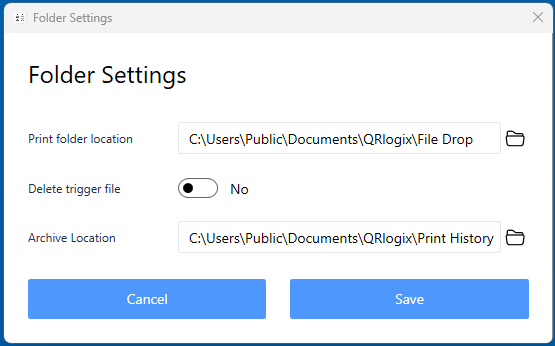
Folder Settings Dialog

Watch Folder Configuration

Select Folder Location

Choose the folder where print job files will be saved.

Folder Selection

Options:

  • Local folder: C:\QRlogixPrintJobs
  • Network share: \\Server\PrintShare\Lab1
  • Mapped drive: Z:\PrintQueue

Best practices:

  • Use network share for multi-user environments
  • Ensure folder has write permissions for sending systems
  • Ensure folder has read/delete permissions for File Drop service
  • Choose reliable, always-accessible location

Watch Folder Requirements

Permissions needed:

  • Read - Service must read files
  • Write - Systems must save files here
  • Delete - Service must remove/move files after printing

Access:

  • Service runs as Local System by default
  • May need to configure service to run as domain user for network folders
  • Test access before production use

File Management After Printing

Option 1: Delete Files

Files are permanently deleted after successful printing.

Pros:

  • Keeps folder clean
  • No disk space issues
  • Simple management

Cons:

  • No record of print jobs
  • Can't reprint from history
  • No audit trail

Best for:

  • High-volume printing
  • Limited disk space
  • When LIS/LIMS keeps records

Option 2: Archive Files

Files are moved to an archive folder after printing.

Pros:

  • Complete audit trail
  • Can reprint from archive
  • Troubleshooting history
  • Compliance/record keeping

Cons:

  • Requires disk space
  • Need to manage archive size
  • Slightly more complex

Best for:

  • Regulatory compliance requirements
  • Troubleshooting needs
  • Audit trail requirements
  • Reprint capability needed

Configuring Archive Folder

If archiving:

  1. Check "Archive files after printing"
  2. Click to select archive folder location
  3. Choose or create archive folder

Archive organization tips:

  • Create dated subfolders (e.g., Archive\2026\01)
  • Set up automated cleanup scripts
  • Monitor disk space
  • Document retention policy

Configuration Examples

Basic Local Setup

Watch Folder: C:\QRlogixPrintJobsFile Management: Delete after printing Use case: Single workstation, low volume

Network Share Setup

Watch Folder: \\LabServer\QRlogixPrint\HistoFile Management: Archive to \\LabServer\QRlogixArchive\HistoUse case: Multi-user, department printing

LIS Integration

Watch Folder: \\LIS\Exports\LabelPrintFile Management: Archive to \\LIS\Archives\LabelPrint\CompletedUse case: Automated LIS printing

Testing Folder Configuration

After configuring:

  1. Save folder settings
  2. Navigate to watch folder in Windows Explorer
  3. Create a test TXT file with sample data
  4. Verify File Drop detects and processes it
  5. Check file is deleted or archived appropriately

Troubleshooting

Service Can't Access Folder

Symptoms:

  • Files not printing
  • Error in log file about folder access

Solutions:

  • Verify folder path is correct
  • Check folder exists
  • Test folder permissions
  • Try local folder first to isolate issue

Files Not Being Deleted/Archived

Symptoms:

  • Files remain in watch folder after printing
  • Duplicate prints occurring

Solutions:

  • Check Delete/Archive setting enabled
  • Verify service has delete permissions
  • Check archive folder path is valid
  • Review log file for errors

Network Folder Issues

Symptoms:

  • Works locally but not with network share
  • Intermittent failures

Solutions:

  • Configure service to run as domain user
  • Verify network connectivity
  • Check UNC path format
  • Test with mapped drive

Best Practices

Security:

  • Restrict watch folder access to authorized systems only
  • Use dedicated folder (don't mix with other files)
  • Regular security audits

Maintenance:

  • Monitor archive folder size
  • Implement cleanup policy
  • Document folder locations
  • Back up critical archives

Performance:

  • Use local or fast network drives
  • Avoid cloud-synced folders
  • Keep watch folder empty (auto-process)
  • Separate folders per template if high volume

Next Steps

After configuring folders:

Need Help?


Related Articles: