
File Drop Interface Overview
The File Drop interface displays the status and configuration of your automated printing templates. This guide explains all interface elements and how to use them.
Accessing File Drop Templates
- Open QRlogix Software
- On the dashboard, locate the File Drop section
- Click on a File Drop template to open it
File Drop Homepage
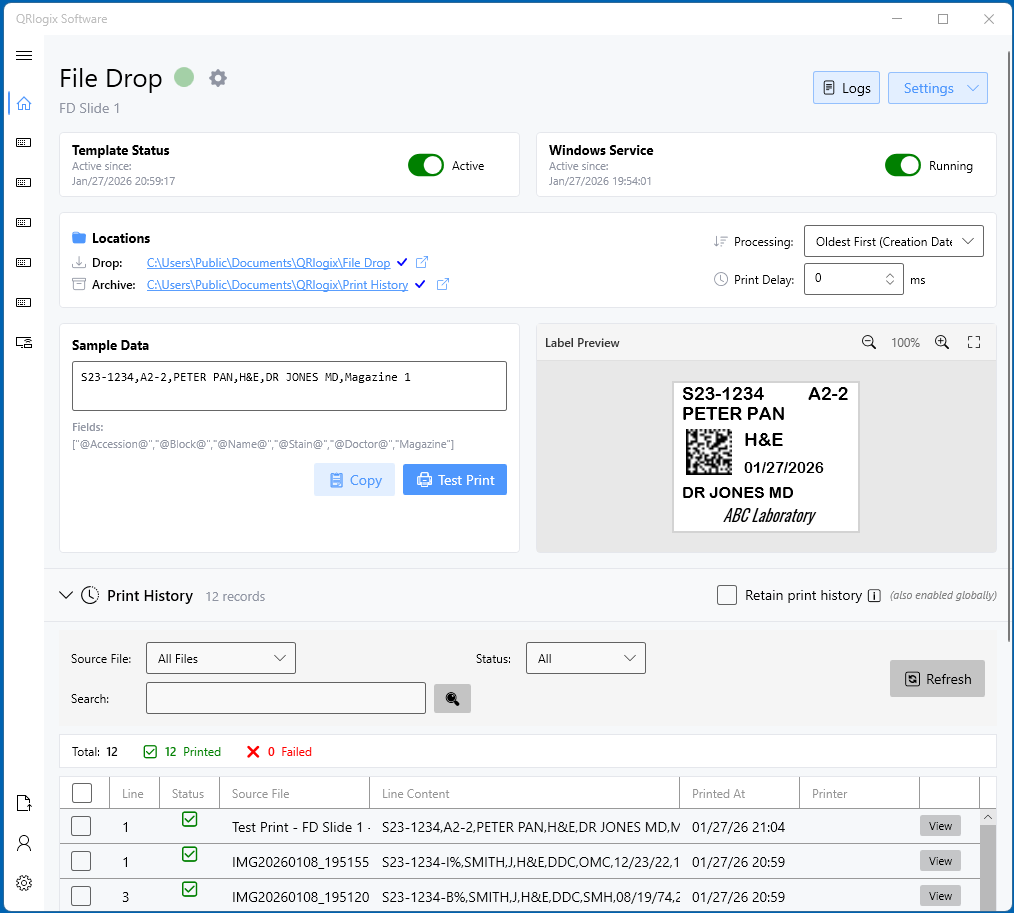
Interface Elements
Template Status Indicator
Green = Active and ready to print
Shows whether this specific template is active and monitoring for print jobs.
- Green: Template is active, watching folder
- Red/Gray: Template inactive or error
Template Name
The name of the currently displayed File Drop template.
Click to switch between different File Drop templates if you have multiple configured.
Print Folder Path
The folder location that the service application is monitoring for new print jobs.
Example: C:\Users\Public\Documents\QRlogix\File Drop
This is where you source of the print jobs saves the TXT or CSV files to trigger printing.
Active Since
Date and time stamp showing when the current template was activated.
Helps track uptime and when monitoring started.
Sample Print File Data
Example of print job formatting with the sample data used from Data Settings.
What it shows:
- Exact format of data string expected
- Field separator characters
- Order of data fields
- Sample values for each field
Example:
S22-1234,A2-1,H&E,PETER PAN,DR JONES MD,Magazine 1
This preview is crucial for:
- Template configuration
- Verifying your data format is correct
- Troubleshooting printing issues
Copy Button
Copies the Sample Print File Data string to your clipboard.
Use this to:
- Create test files
- Document data format
- Troubleshoot formatting issues
Test Print Button
Sends the sample text file data to the shared folder as a test print job.
What happens:
- Creates a TXT file with sample data
- Saves it to the print folder
- File Drop service detects the file
- Prints label on active printer
- File is deleted or archived (per settings)
Use for:
- Verifying configuration works
- Confirm print file is getting picked up from print folder
- Testing label design
- Checking printer connectivity
- Troubleshooting issues
Label Preview
Visual preview of how the label will look using the Sample Print File Data.
Shows:
- Label layout
- Text positioning
- Barcode placement
- Font sizes and styles
- Overall appearance
Important: This preview uses sample data. Real labels will look the same but with actual data from print files.
Service Status Indicator
Indicates if the Windows File Drop service is running and actively monitoring the shared folder.
- Green/Active: Service running, monitoring folder
- Red/Inactive: Service stopped, not monitoring
Must be green for File Drop to work!
Service Link
Opens the Windows Services application.
Quick access to:
- Check service status
- Start/stop service
- Configure service properties
- Troubleshoot service issues
Log File Location Link
Opens the log.txt file that records File Drop activity.
Log file contains:
- Print job timestamps
- Files processed
- Errors encountered
- Service start/stop events
- Troubleshooting information
Location: Usually in the File Drop installation directory
Inactive Since
Timestamp showing when the service or template was last stopped.
Only visible when status is inactive. Helps track when issues started.
Settings Dropdown
Access to template configuration options.
Options:
- Folder Settings - Configure watch folder and archive settings
- Data Settings - Map data fields and separators
- Label Settings - Design label layout
- Printer Settings - Printer and magazine configuration
- Webhook Settings - Configure API webhooks
- Rename Template - Change name
- Export Template - Save for backup or sharing
- Duplicate Template - Create a duplicate
- Delete Template - Remove template
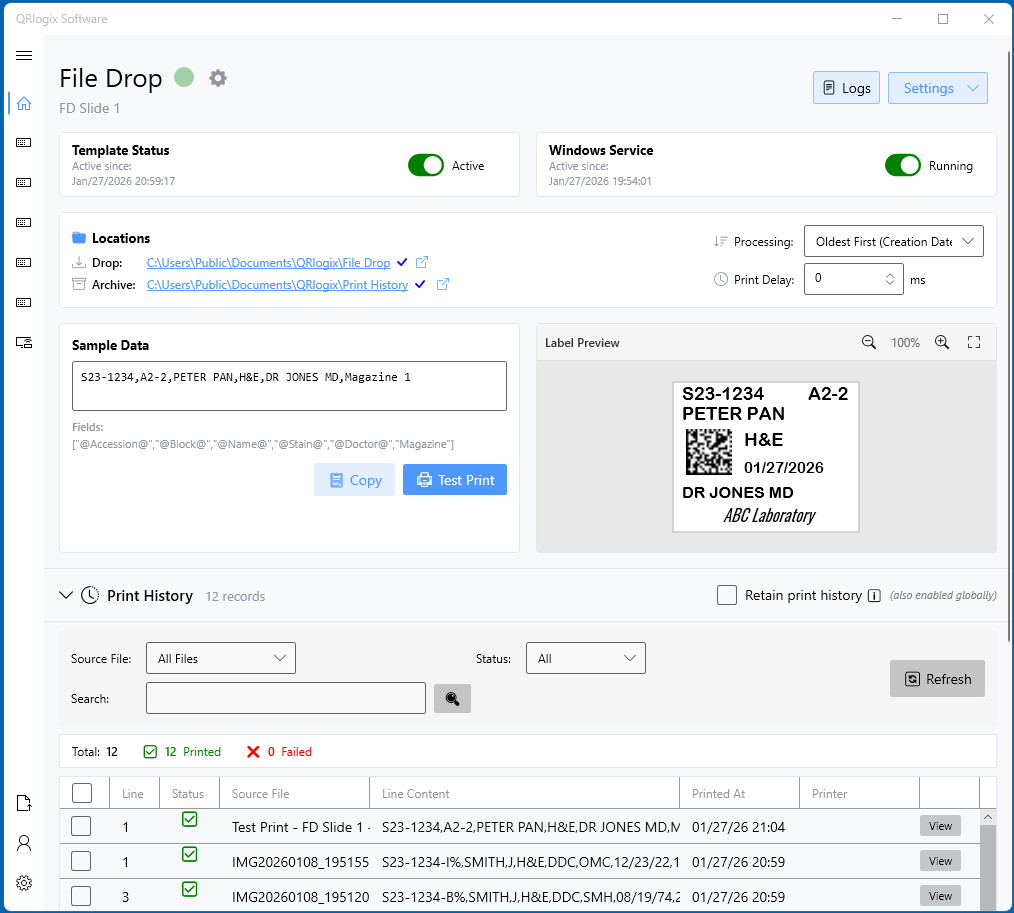
Testing Configuration
After any changes:
- Click Test Print
- Verify label prints correctly
- Check label preview matches output
- Confirm data formatting is correct
Troubleshooting File Drop Automation
Problem: Both Indicators Red
Check:
- Is File Drop service running? (Open Services app)
- Is shared folder path accessible?
- Are there configuration errors?
Fix:
- Start service if stopped
- Verify folder permissions
- Check Settings → Folder Settings
- Review error log file
Problem: No Labels Printing
Check:
- Are indicators green?
- Are test files appearing in print folder and clearing?
- Is service application running?
- Is printer online and has labels?
- Check log file for errors
Fix:
- Run Test Print to isolate issue
- Confirm service is running, credentials are up to date
- Check folder permissions
- Verify printer selection
- Review log file for errors
Need Help?
Questions about the File Drop interface?
- Phone Support: 800-650-0632
- Email Support: Support@QRlogix.com