Data Settings for File Drop

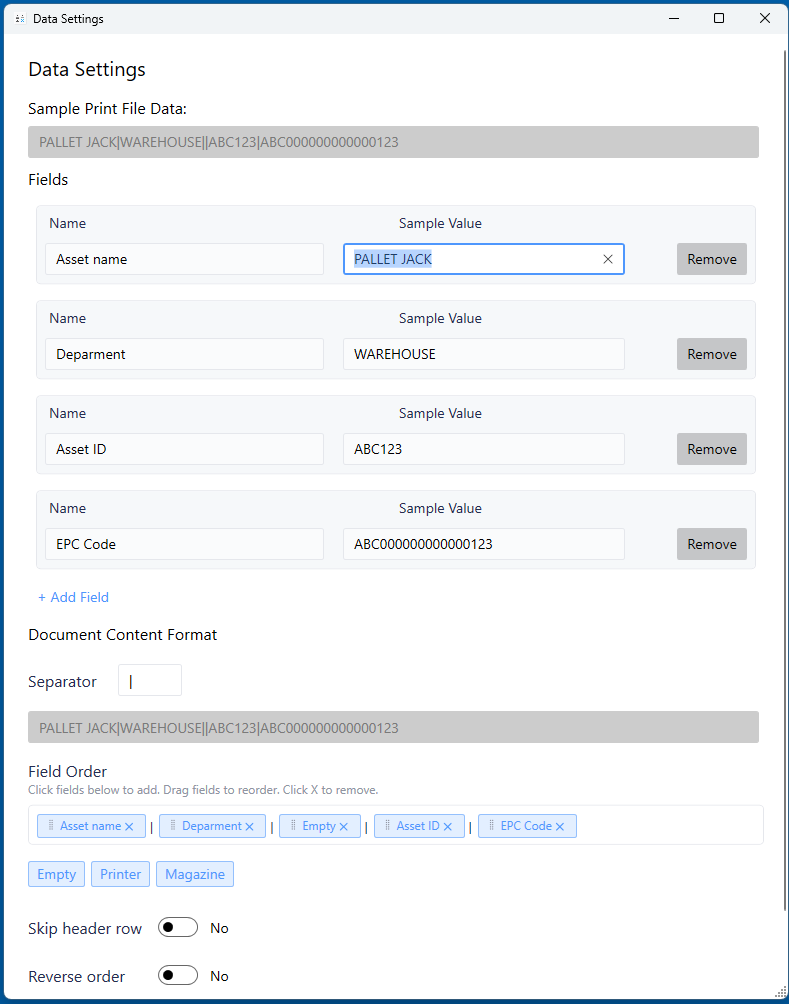
Data Settings control how File Drop parses incoming text files and maps data to label fields.

Accessing Data Settings

  1. Open your File Drop template
  2. Click Settings dropdown
  3. Select Data Settings
Data Settings

Understanding Your Data Format

Sample TXT File

Sample TXT

Example: S22-1234,A1,H&E,BILLY BOB,DR JONES

Components:

  • Data fields: 5 pieces of information
  • Separator: , (comma)
  • Order: Fixed sequence

Sample CSV File

Sample CSV

Same concept, may include header row.

Defining Data Fields

Field Definition

For each data container in your file, create a field:

Field Name

Descriptive name used in Label Builder.

Examples:

  • "Case Number"
  • "Specimen Letter"
  • "Stain"
  • "Patient Name"
  • "Physician"

Best practices:

  • Clear, descriptive names
  • Match your terminology
  • Used as reference in Label Builder
  • No special characters

Sample Value

Example data for this field.

Critical: Use realistic sample data!

Good examples:

  • Case: "S22-1234"
  • Specimen: "A1"
  • Stain: "H&E"
  • Name: "BILLY BOB"

Why it matters:

  • Creates Sample Print File Data string
  • Feeds label preview
  • Used for test prints
  • Shows exact format

Separator Configuration

Define the character(s) that separate fields in your data.

Common separators:

  • , (comma) - Most common, CSV files
  • ; (semicolon) - Alternative
  • | (pipe) - Database exports
  • Tab - Tab-delimited files
  • Space - (avoid if data contains spaces)

In example: S22-1234,A1,H&E,BILLY BOB,DR JONES

  • Separator: ,
  • Creates 5 separate fields

Field Order Mapping

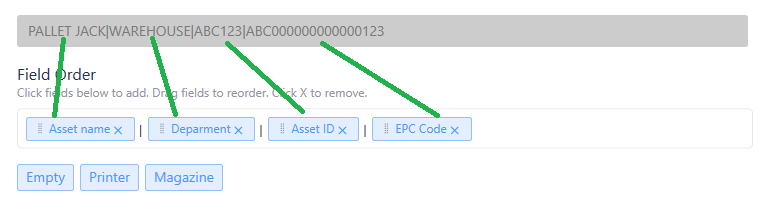
Critical Step: Match field order to data order!

Field Order
Field Mapping

Example Mapping

Text file: S22-1234,A1,H&E,BILLY BOB,DR JONES

Break down:

Position 1: S22-1234    → Field 1 (Case Number)
Position 2: A1          → Field 2 (Specimen)
Position 3: H&E         → Field 3 (Stain)
Position 4: BILLY BOB   → Field 4 (Patient Name)
Position 5: DR JONES    → Field 5 (Physician)

In Data Settings:

  • Field Order Position 1 → Select "Case Number"
  • Field Order Position 2 → Select "Specimen"
  • Field Order Position 3 → Select "Stain"
  • Field Order Position 4 → Select "Patient Name"
  • Field Order Position 5 → Select "Physician"

Verification

After mapping, the Sample Print File Data string should display correctly on the File Drop homepage.

Additional Options

Skip Header Row

Skip Header Option

If printing from CSV with header row:

CaseNum,Specimen,Stain,Patient,Doctor
S22-1234,A1,H&E,BILLY BOB,DR JONES
S22-1235,B1,Trichrome,JANE DOE,DR SMITH

Enable Skip Header Row so first line isn't printed as a label.

Reverse Print Order

Flips the output sequence of labels.

Normal: Prints labels in file order (top to bottom) Reversed: Prints labels in reverse order (bottom to top)

Use cases:

  • Match printer stacking behavior
  • Specific workflow requirements
  • Label cassette orientation

Sample Print File Data Result

After configuring all settings, the File Drop homepage shows:

Sample Print File Data: S22-1234,A1,H&E,BILLY BOB,DR JONES

This represents:

  • Exact format expected
  • Field order
  • Separator character
  • Sample values from each field

Use this string to:

  • Share with LIS/LIMS team
  • Create test files
  • Verify configuration
  • Troubleshoot issues

Testing Your Configuration

Create Test File

  1. Copy Sample Print File Data string
  2. Create new .txt file
  3. Paste string
  4. Save to watch folder
  5. Verify label prints correctly

Multiple Records

Test with multiple lines:

S22-1234,A1,H&E,BILLY BOB,DR JONES
S22-1235,B1,Trichrome,JANE DOE,DR SMITH
S22-1236,C1,PAS,JOHN SMITH,DR BROWN

Should print 3 labels (or 3 sets if using To/From counter).

Common Configuration Patterns

Simple LIS Format

Data: ACC12345,A,H&E,2026-01-25

Fields:

  1. Accession (ACC12345)
  2. Specimen (A)
  3. Stain (H&E)
  4. Date (2026-01-25)

Separator: ,

Complex Format with Multiple Data Points

Data: S23-1234|A|1|H&E|Smith, John|Dr. Jones|Histo|Tech1

Fields:

  1. Case
  2. Specimen
  3. Block
  4. Stain
  5. Patient
  6. Physician
  7. Department
  8. Technician

Separator: |

Minimal Format

Data: S23-1234;A1

Fields:

  1. Case Number
  2. Block ID

Separator: ;

Troubleshooting

Wrong Data on Labels

Cause: Field order doesn't match file order

Fix:

  1. Review sample file carefully
  2. Count separator characters
  3. Verify field order matches exactly
  4. Test with known file

Missing Fields

Cause: Not enough fields defined or wrong separator

Fix:

  1. Count data containers in file
  2. Create field for each container
  3. Verify separator character
  4. Check for hidden characters

Extra/Unexpected Data

Cause: Trailing separators or extra fields

Fix:

  • Check for separators at end of line
  • Verify file format is consistent
  • Use SKIP in field order if needed

Best Practices

Data Format:

  • Keep format consistent
  • Don't change field order after deployment
  • Document format clearly
  • Test thoroughly before production

Field Names:

  • Use clear, descriptive names
  • Match your workflow terminology
  • No abbreviations unless obvious
  • Consider who will maintain templates

Sample Values:

  • Use realistic data
  • Match actual data length
  • Include special characters if present
  • Test with maximum length data

Next Steps

After configuring data settings:

Need Help?


Related Articles: