
Customize Data Entry Templates
Form Builder allows you to select different form items and edit their individual properties.
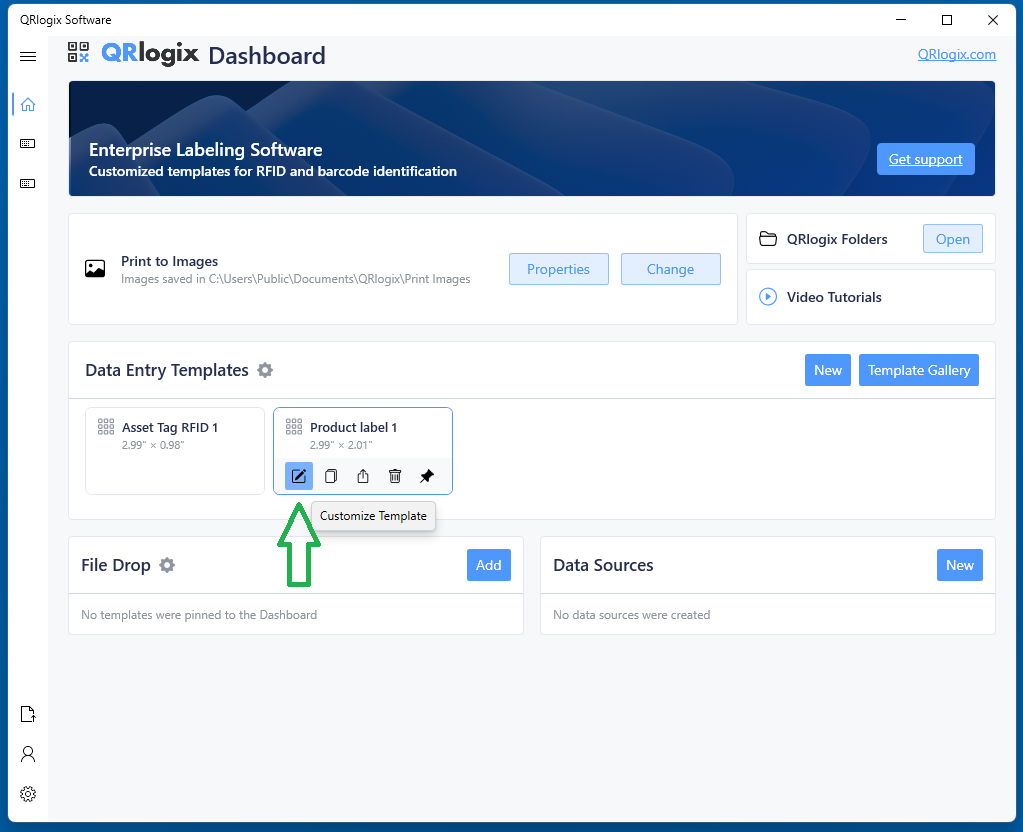
To access form builder, click the Customize Template icon below the template, located on the dashboard.
VIDEO - Editing Data Entry Templates
OVERVIEW
From the Customize Template screen, you can add and remove template features such as Text fields, Numeric fields, Dropdown boxes, Panels, and Sequential letters, Text Boxes and Date Pickers. You can also change the name of a template, add printers to a template form dropdown, setup a barcode reader, and connect to APIs.
HOW TO EDIT FORM FIELDS
To add fields or dropdown boxes to a form, select the Add Field option at the top of the window
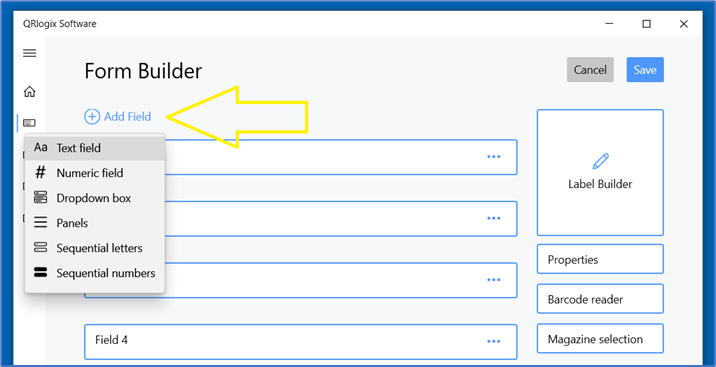
Select the type of form field you want to add, and proceed to edit the field settings accordingly.
Text Fields
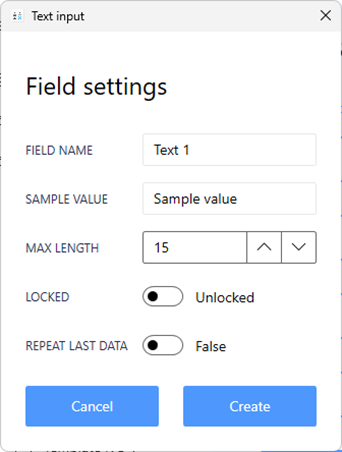
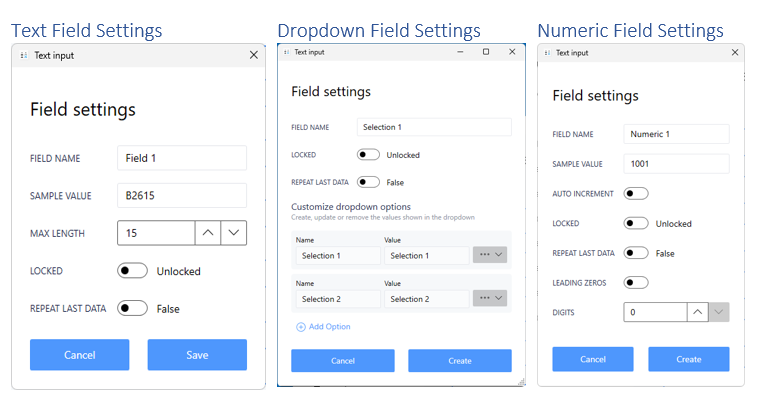
FIELD NAME: Name/Rename field
SAMPLE VALUE: Values displayed in Label Builder preview. It’s important to use data similar to what will acutally be used.
MAX LENGTH: Set max character length to print on label. Data that exceeds max length will be truncated.
LOCKED/UNLOCK: Locks form field so data remains and cursor skips field
REPEAT LAST DATA: Field data automatically repopulates after printing
Numeric Fields
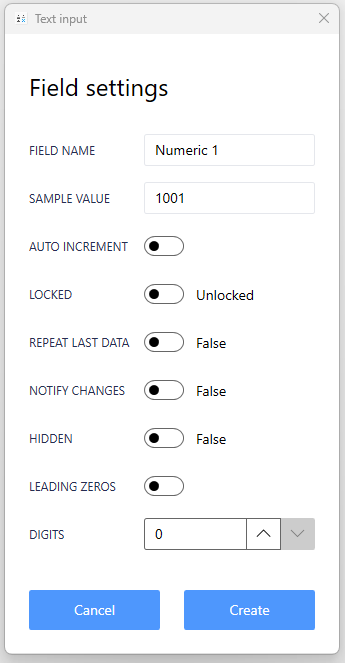
Numeric Field Input Data
FIELD NAME: Name/Rename field
SAMPLE VALUE: Values displayed in Label Builder preview. It’s important to use data similar to what will acutally be used.
AUTO-INCREMENT: Set number to automatically increment after each print job
LOCKED: Locks form field so data remains and cursor skips field
REPEAT LAST DATA: Field data automatically repopulates after printing.
HIDDEN - Hides field from view on print form
LEADING ZEROS: Prints leading zeros based on user defined numbed of digits
Dropdown Boxes
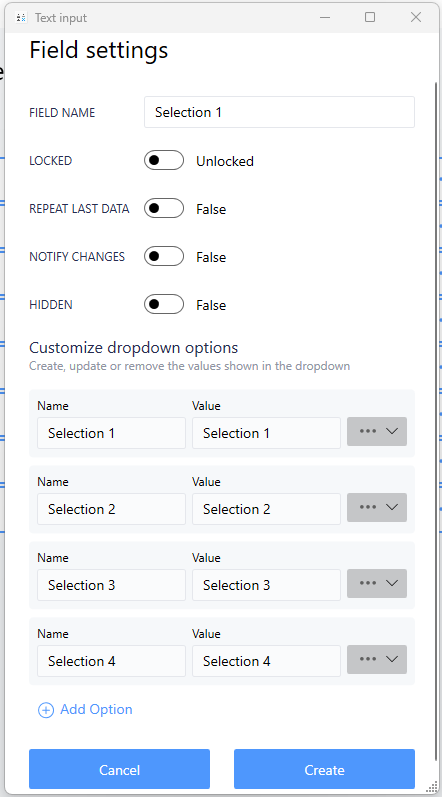
FIELD NAME: Name or Rename field
LOCKED: Locks form field so data remains and cursor skips field
REPEAT LAST DATA: Field data automatically repopulates after printing.
HIDDEN: Hides dropdown from being seen on form. Not recommended with dropdown boxes.
Values in the NAME side are shown in the dropdown box list. Values put in the Value side print on the label.
Sequential Letters
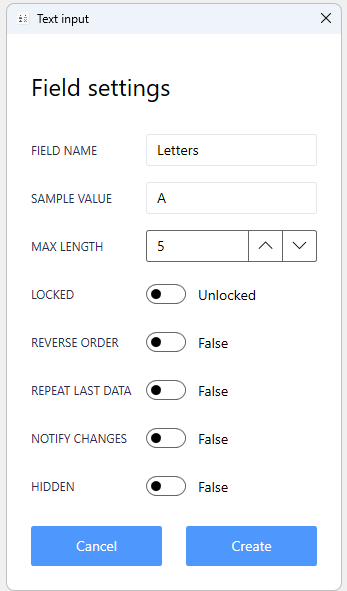
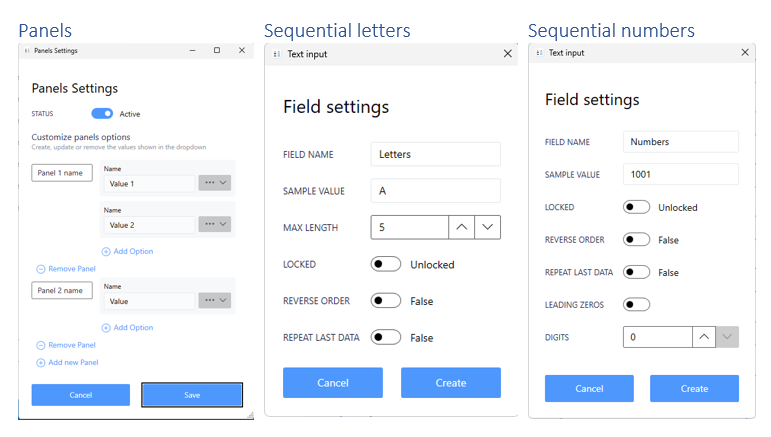
FIELD NAME: Rename field
SAMPLE VALUE: Values displayed in Label Builder preview. It’s important to use data similar to what will actually be used.
MAX LENGTH: Displayed/Printed data not to exceed this many characters
LOCKED: Locks form field so data remains. Cursor skips field
REVERSE ORDER: Print output order is reversed
REPEAT LAST DATA: Field data automatically repopulates after printing
HIDDEN - Hides fields from showing on print form. Not recommended with sequential letters
Sequential Numbers
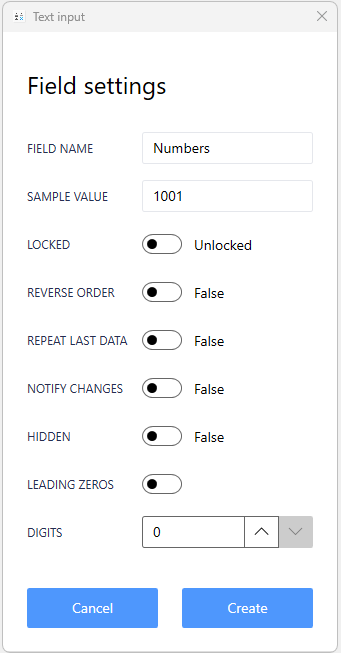
FIELD NAME: Rename field
SAMPLE VALUE: Values displayed in Label Builder preview. It’s important to use data similar to what will actually be used.
LOCKED: Locks form field so data remains and cursor skips field
REVERSE ORDER: Prints in opposite order
REPEAT LAST DATA: Field data automatically repopulates after printing
LEADING ZEROS: Prints leading zeros based on user defined numbed of digits
HIDDEN: Hides fields from showing on print form. Not recommended with sequential numbers
Date Picker
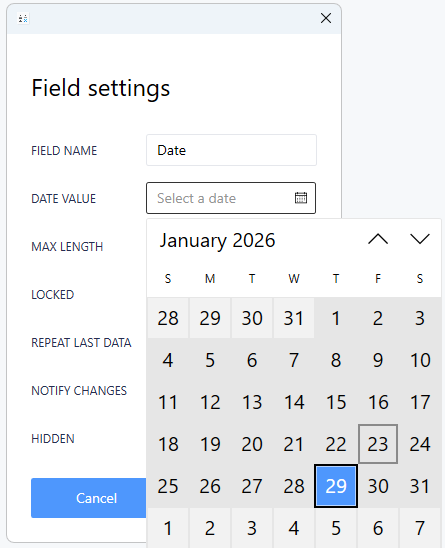
To add a date picker, click on the calendar and select a date. This is used for sample data. Click create. Make sure you add the field to the label in Label Builder.
Reverse Print Order
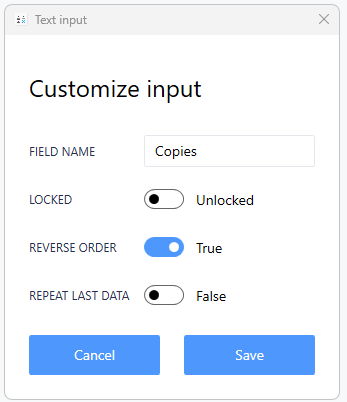
To reverse the print sequence output order, open the counter and select REVERSE ORDER.
NEXT: Label Builder
 David Carson