Barcode Reader Setup

QRlogix Software supports barcode scanner integration to automatically populate form fields from scanned data. This eliminates manual typing and reduces errors when working with LIS data or pre-labeled specimens.

Before You Begin

What You Need

  • Barcode scanner configured as keyboard input device
  • Sample barcode to test with
  • Understanding of your barcode format and separator characters

How Barcode Integration Works

  1. User scans a barcode
  2. Scanner sends data to computer as keyboard input
  3. QRlogix parses the data using defined separators
  4. Data automatically fills designated form fields
  5. Cursor moves to next unlocked field

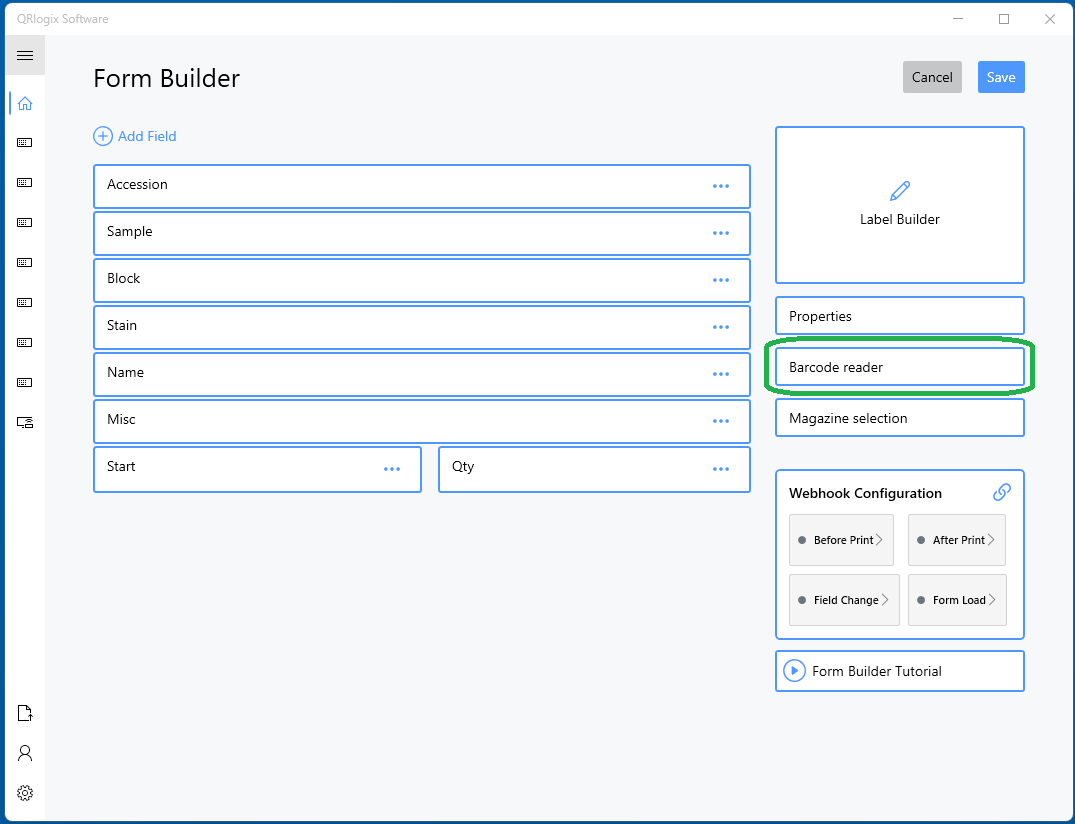
Accessing Barcode Reader Setup

From the Customize Template screen:

  1. Open your template
  2. Click OptionsCustomize Template
  3. Locate the Barcode Reader field in Form Builder
  4. Click to configure
Barcode Reader Setup

Configuration Steps

Step 1: Provide Sample Scan

Sample Scan

Enter or scan a sample barcode that represents your typical data format.
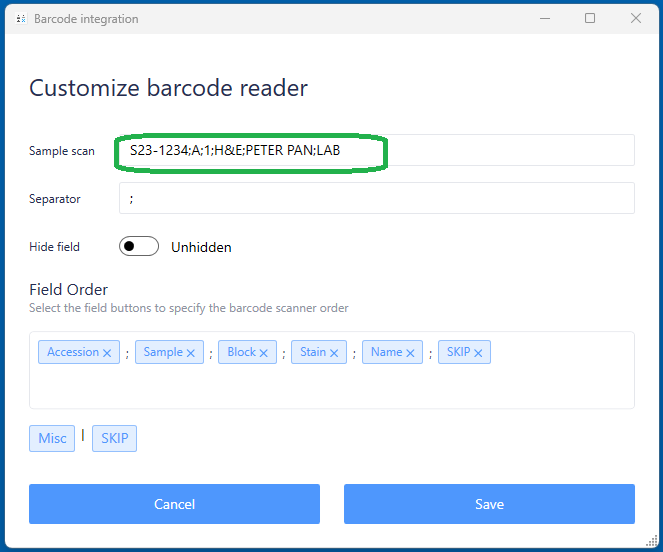
Example formats:

  • S23-1234;A1;H&E;SMITH;JONES
  • 12345|A|01/25/2026|Path
  • C23-0001~Breast~Frozen~JD

Why this matters:

  • Helps visualize the data structure
  • Validates separator detection
  • Previews field mapping

Step 2: Define the Separator

Specify the character(s) that separate data fields in your barcode.

Common separators:

  • ; (semicolon) - Most common
  • , (comma) - CSV style
  • | (pipe) - Database style
  • ~ (tilde) - Alternative
  • Tab character
  • Space (less common, avoid if data contains spaces)

In the example above:

  • Barcode: S23-1234;A1;H&E;SMITH;JONES
  • Separator: ;
  • Results in 5 separate fields

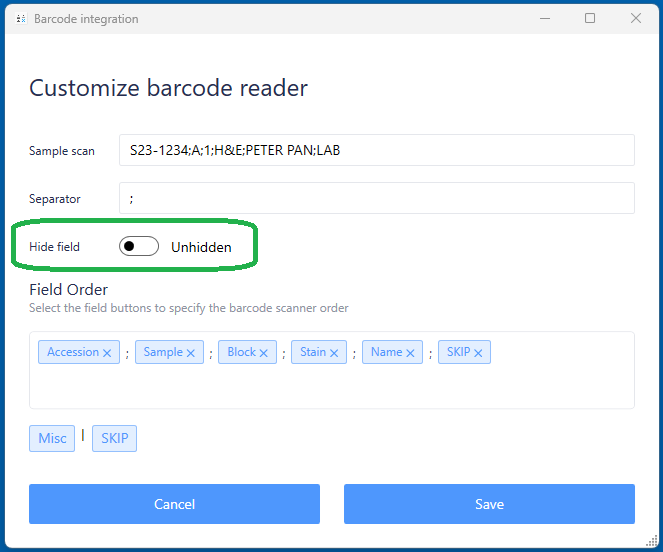
Step 3: Unhide the Barcode Scanner Field

Toggle the "Hide field" option to OFF so the barcode scanner input appears on your template form.

Unhide Barcode Field

When unhidden, a barcode input field appears at the top of your template form.
Step 4: Map Fields to Data Order

Field Mapping

Define which form field receives which piece of scanned data, in order from left to right.
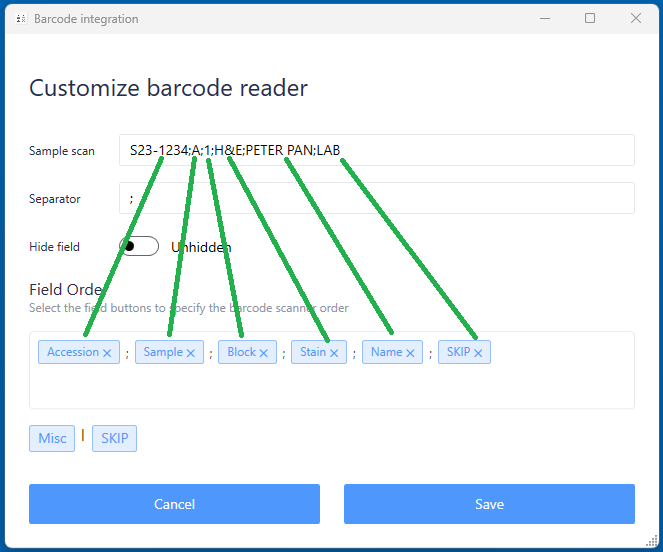
Example Barcode: S23-1234;A1;H&E;SMITH;JONES

Field Mapping:

  1. Position 1 → Case Number field
  2. Position 2 → Specimen Letter field
  3. Position 3 → Stain field
  4. Position 4 → Patient Last Name field
  5. Position 5 → Physician field

Using the SKIP Option

If your barcode contains data you don't need, use SKIP for that position.
Example:

  • Barcode: S23-1234;A1;INTERNAL_ID;H&E;SMITH
  • Position 1 → Case Number
  • Position 2 → Specimen Letter
  • Position 3 → SKIP (don't need INTERNAL_ID)
  • Position 4 → Stain
  • Position 5 → Patient Name

Step 5: Lock and Edit Fields

Lock Fields

After mapping, configure each form field:

  1. Lock fields that will be populated by the scanner
  2. Edit field properties as needed (max length, etc.)
  3. Leave other fields unlocked for manual entry

Why lock barcode-populated fields:

  • Prevents accidental manual changes
  • Cursor automatically skips to first unlocked field
  • Ensures data integrity from LIS/system

Step 6: Save Configuration

Click Save to apply the barcode reader settings.

Using the Barcode Scanner

Once configured, your workflow becomes:

Before Scanning

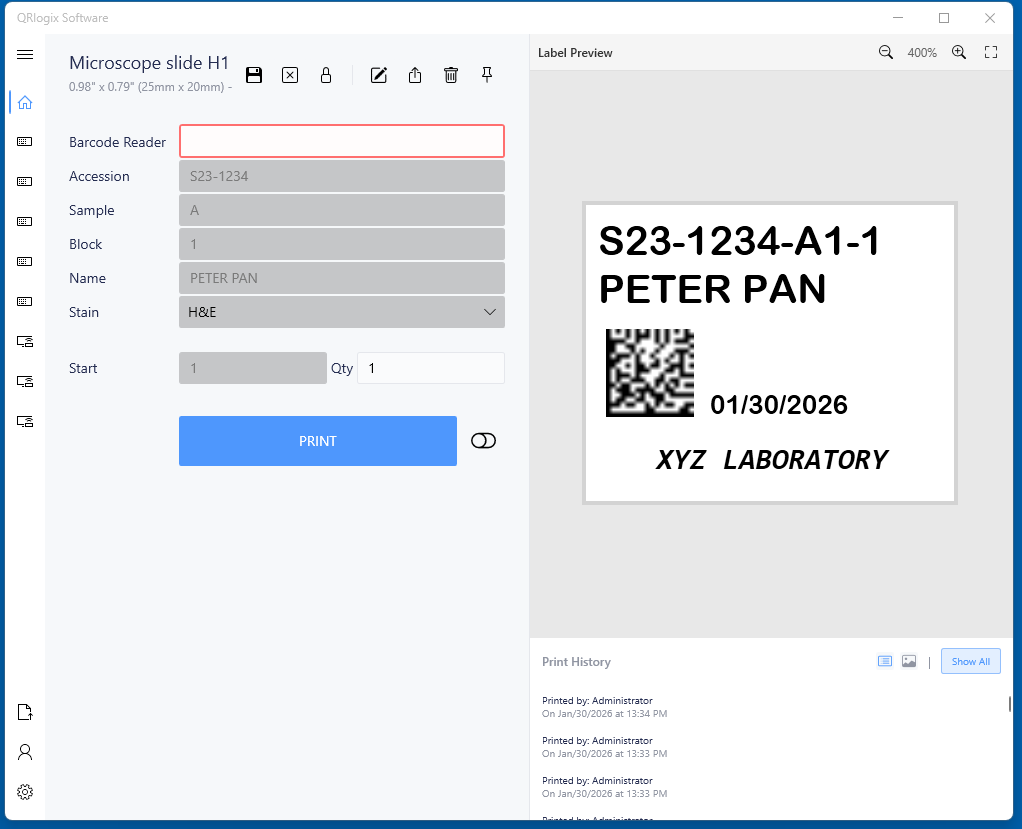
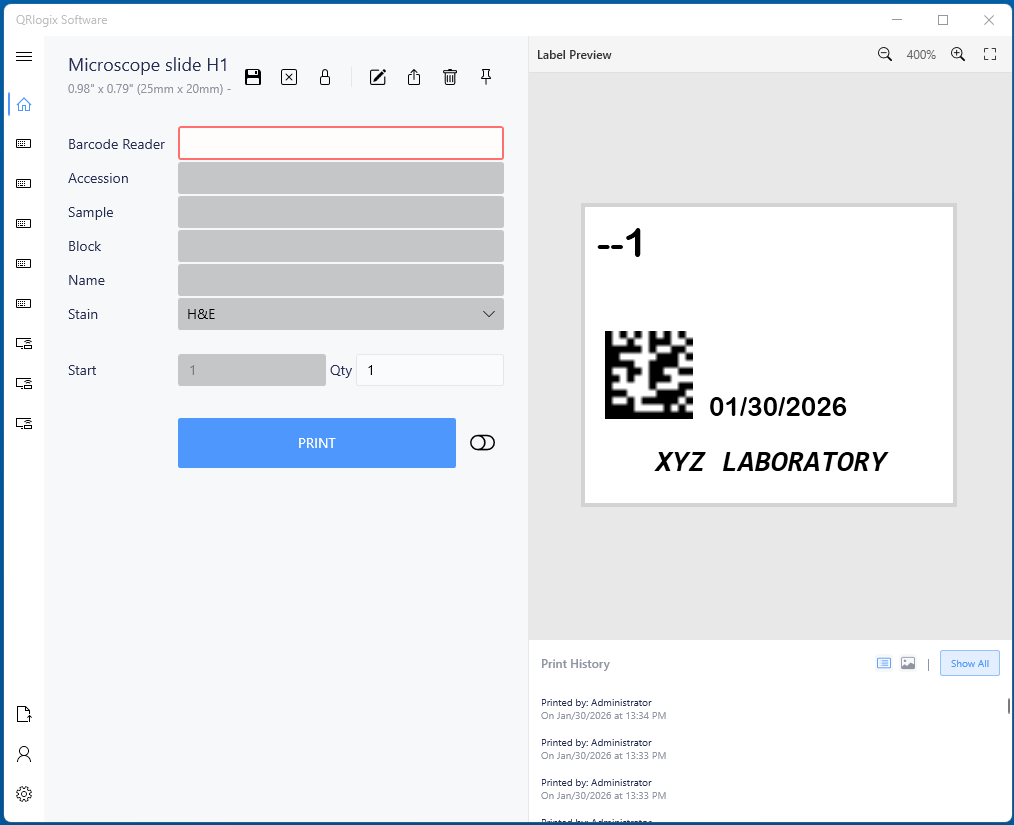
Template Before Scan

Template shows empty fields with barcode input field at top.

After Scanning

Template After Scan
  1. Scan the barcode
  2. Fields automatically populate with parsed data
  3. Locked fields remain populated
  4. Cursor moves to first unlocked field
  5. Enter any additional data needed
  6. Print

Barcode Format Examples

LIS Integration Format

Barcode: LAB12345;A;01/25/2026;H&E;Smith, John;Dr. Jones
Fields:
1. Accession Number
2. Specimen Letter
3. Date
4. Stain
5. Patient Name
6. Physician

Simple Case Format

Barcode: S23-1234;A1
Fields:
1. Case Number
2. Block ID

Research Study Format

Barcode: STUDY001|Subject042|Visit3|Blood
Fields:
1. Study ID
2. Subject Number
3. Visit Number
4. Specimen Type

Testing Your Configuration

Verification Steps

Check sample preview:

  • Does it show the data separated correctly?
  • Are there the right number of fields?

Test with real barcode:

  • Scan a real specimen barcode
  • Verify all fields populate correctly
  • Confirm locked fields work as expected

Print test label:

  • Verify label shows correct data
  • Check formatting and positioning
  • Confirm barcode on label scans properly (if using label barcodes)

Common Test Issues

Fields don't populate:

  • Check separator matches barcode format
  • Verify scanner is in keyboard emulation mode
  • Ensure barcode reader field is unhidden

Wrong data in fields:

  • Review field mapping order
  • Check for extra separators in barcode
  • Verify SKIP is used for unwanted data

Some fields missing:

  • Count separator characters in sample
  • Ensure all positions are mapped or skipped
  • Check for trailing separators

Best Practices

Barcode Design

If designing barcodes for QRlogix:

  • Use consistent separator characters
  • Avoid spaces within data fields
  • Keep data order logical
  • Include all needed information
  • Test with various data lengths

Field Configuration

Lock scanner-populated fields:

  • Prevents manual override
  • Ensures data integrity
  • Speeds up workflow

Leave supplemental fields unlocked:

  • For data not in barcode
  • For manual corrections if needed
  • For optional information

Workflow Integration

Start of day:

  1. Test scan one barcode
  2. Verify fields populate correctly
  3. Begin production work

During use:

  • Scan first, then review
  • Add manual data to unlocked fields
  • Print when complete

Quality checks:

  • Periodically verify scan accuracy
  • Check that locked fields match barcode
  • Audit printed labels

Advanced Configuration

Multiple Barcode Types

If you use different barcode formats:

  • Create separate templates for each format
  • Name templates clearly ("LIS Scan", "Specimen Scan")
  • Train users on which template for which barcode

Partial Automation

Mix barcode and manual data:

  • Scan provides: Case, Specimen, Date
  • Manual entry: Stain, Slide count, Tech
  • Combines automation with flexibility

Integration with Repeat Last Data

Combine features:

  • Barcode populates and locks core data
  • Other fields use Repeat Last Data
  • Optimal mix of automation and efficiency

Troubleshooting

Scanner Not Working

Check:

  • Scanner connected and powered
  • Scanner in keyboard emulation mode
  • Scanner prefix/suffix settings (should send Enter/Tab after scan)
  • Windows recognizes scanner

Data Populating Incorrectly

Verify:

  • Separator character matches barcode
  • Field mapping order correct
  • No extra spaces or characters
  • Barcode format consistent

Fields Not Locking

Ensure:

  • Fields configured as locked in settings
  • Lock icons visible on form
  • Template saved after configuration

Barcode Field Hidden

Fix:

  • Return to Customize Template
  • Barcode Reader settings
  • Toggle "Hide field" to OFF
  • Save changes

Scanner Hardware Tips

Scanner Settings

Configure your scanner to:

  • Keyboard emulation mode (not serial/USB virtual COM)
  • Send Enter after scan (auto-submit data)
  • No prefix/suffix required (unless your workflow needs it)
  • All symbologies enabled or specific ones you use

Scanner Types

Common scanner types:

  • USB handheld scanners (most common)
  • Bluetooth wireless scanners
  • Presentation scanners (hands-free)
  • Mobile device cameras with scanning apps

All work as long as they emulate keyboard input.

Next Steps

After setting up barcode scanning:

Need Help?

Questions about barcode scanner setup?

  • Phone Support: 800-650-0632
  • Email Support: Support@QRlogix.com
  • Have your scanner model and sample barcode ready

Related Articles: